> For the complete documentation index, see [llms.txt](https://wpdocs.gitbook.io/nutreko/llms.txt). Markdown versions of documentation pages are available by appending `.md` to page URLs; this page is available as [Markdown](https://wpdocs.gitbook.io/nutreko/content-management/set-up-footer.md).
# Set up Footer
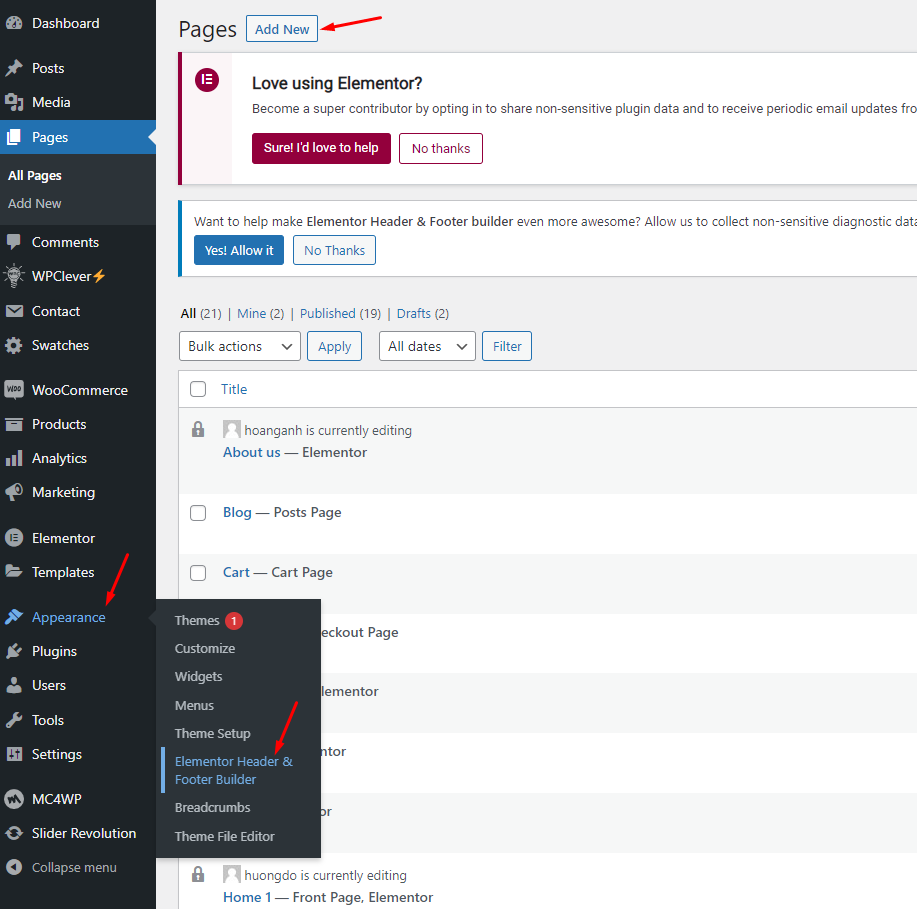
**Step 1 -** Go to WordPress **Dashboard** -> **Appearance** -> **Header & Footer Builder** -> **Add new** -> **Edit with Elementor**
By bringing the power of the Elementor editor to the header/footer areas, you can design them any way you like, full-width included, and be able to complete projects faster than ever. You can also save header and footer templates, and reuse them on any other project.
If you are beating yourself up right now for all the hours you lost in the past over your header design, we share your feelings. From now on, with the help of Theme Builder, things are going to be much faster. [Learn How To Build Headers](https://www.youtube.com/watch?v=tDePkL-1tu4)
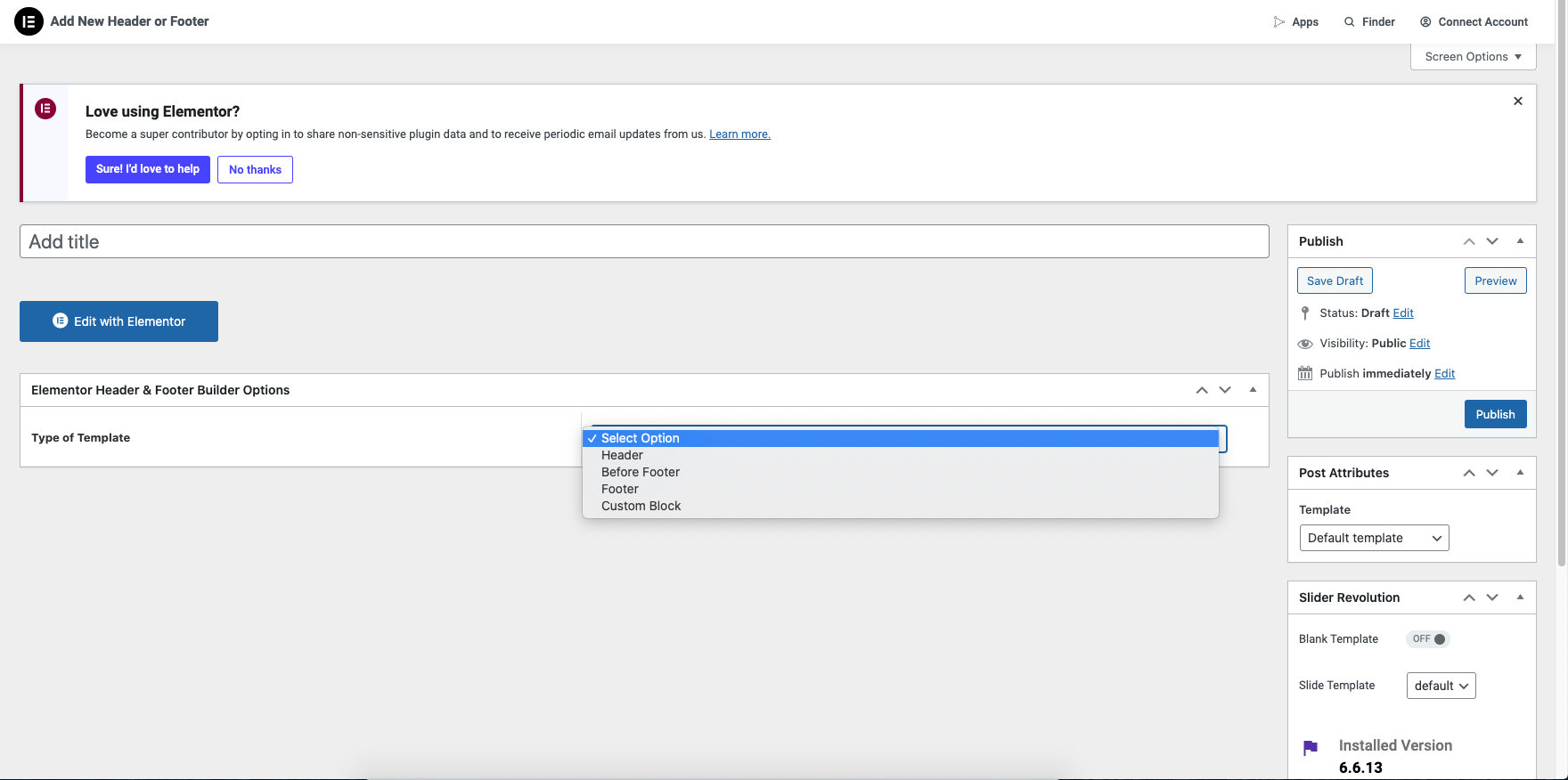
**Step 2 -** Click ‘**Add New Template**’ and choose ‘**Footer**’
**Step 3 -** Name your header template and click ‘**Publish**’
**Step 4** - Drag or drop the element that you want to build your template style with an unlimited layout
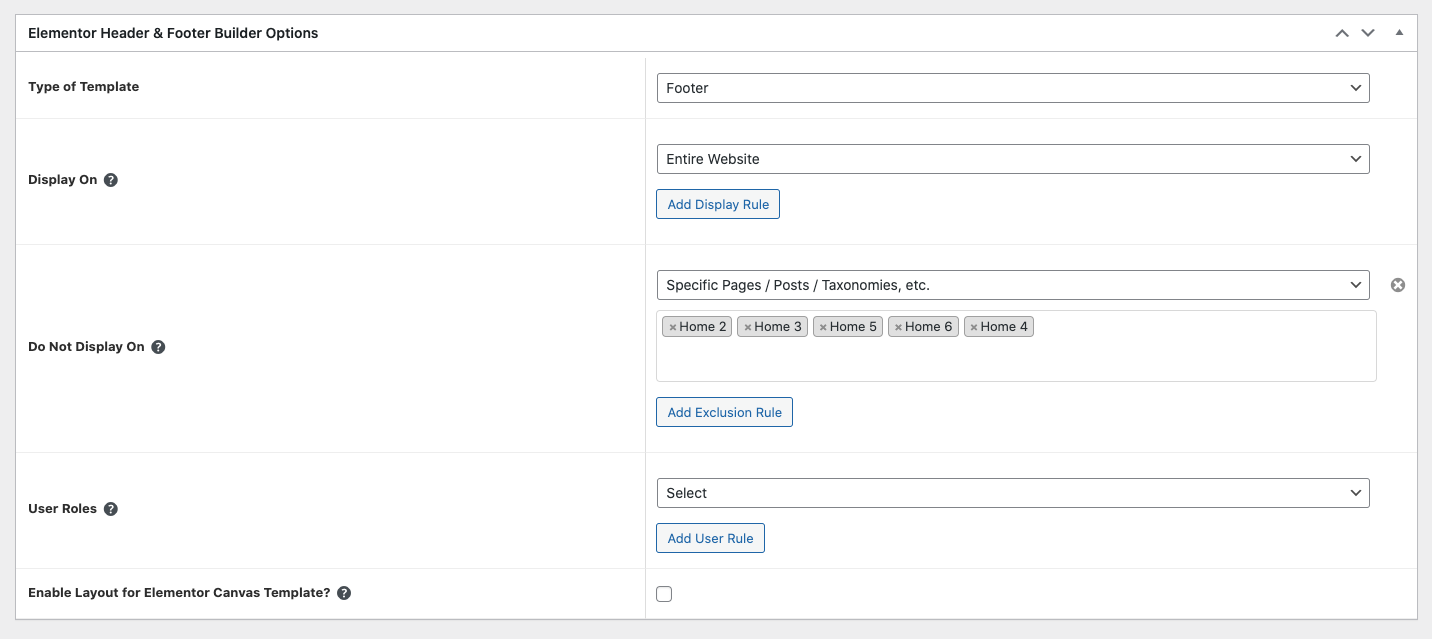
**Step 5 -** Once you have made the needed changes to the header design, click ‘**Update**’, and choose where to Display Conditions.
**Step 6 -** Set the conditions that determine where your **Footer** is. For example, choose '**Entire Site**' to display the header across your site.
**Step 7 -** Click **"Save and Close"**