> For the complete documentation index, see [llms.txt](https://wpdocs.gitbook.io/nutreko/llms.txt). Markdown versions of documentation pages are available by appending `.md` to page URLs; this page is available as [Markdown](https://wpdocs.gitbook.io/nutreko/setting/color.md).
# Color
Set primary color, second color, body, heading color for page
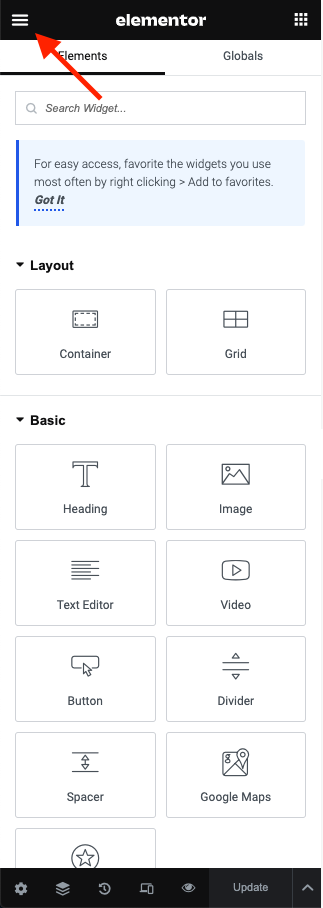
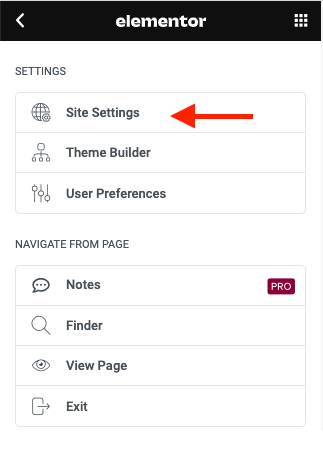
**Step 1** - You can go to any **Elementor** edit page. In **Settings,** select **Site Settings**.
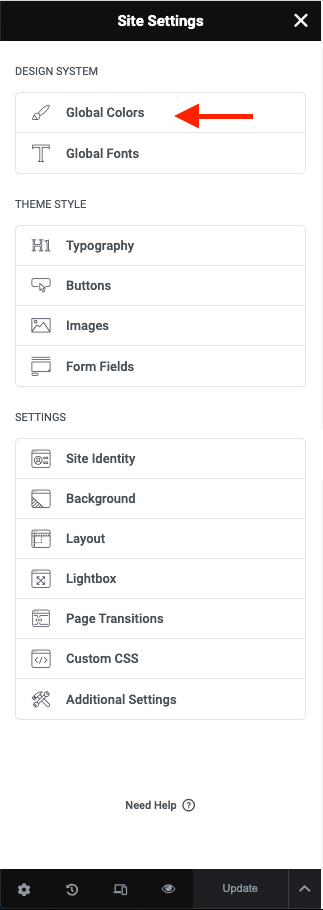
**Step 2** - Site Settings -> Global Colors
**Step 3** - Setting color for your site
1. The **Primary Color** is the main color of your site.
* Regular: original color
* Hover: color when hovering items
Example: Color Button, Color Link, and some other places.
2\. **Body Color** is the color of the content text.
Example: Color content, description ... in a single blog, single product, page ...
3\. The **Heading Color** is the color of the heading text.
Example: Color Title, Title Tab ...
4\. **Border Color** is the color border block.
Example: border product block, border form input, and places with borders ...
5\. **Light Color** is color light used for sub description.
Example: Color categories, color date time, color subtitle ...
Note: Color is sometimes used for many special places to see which colors apply correctly to what cases you can select and test.