# Loco Translate Guide

## 1. Installing and Activating of Loco Translate

In order to install plugin, simply go to **Plugins -> Add New** and search for *Loco Translate*.

<figure><img src="https://2950202805-files.gitbook.io/~/files/v0/b/gitbook-x-prod.appspot.com/o/spaces%2F5QDqgOY34Px2djkabwQD%2Fuploads%2Fsdhza8a3SLDID3VTPkdy%2Fdowload%20loco.webp?alt=media&#x26;token=e3a16ae5-e118-4508-9b7e-c7aec6f56189" alt=""><figcaption></figcaption></figure>

Select **Install Now** button, then click on **Activate** to get the plugin ready for use.

## 2. Changing default language

Each theme will have certain languages built in so before starting to translate your theme into language you want, you need to set your WordPress language first.

Simply navigate to **Settings -> General** and scroll down to the bottom where you will see a dropdown labeled **Site Language**. As you can in the following image, **Ekommart** default language is English

<figure><img src="https://2950202805-files.gitbook.io/~/files/v0/b/gitbook-x-prod.appspot.com/o/spaces%2F5QDqgOY34Px2djkabwQD%2Fuploads%2FmT7MZKUgfzqIMw52TY6r%2Fsettings%20language.webp?alt=media&#x26;token=003aa610-e68d-4c9e-93d1-c162b260928c" alt=""><figcaption></figcaption></figure>

If the language you wish to translate your theme into is not in the **Installed** section, select your preferred language from the dropdown menu and click on **Save Changes**.  This will install your language and set it as your site’s default.  I have chosen Germany from the dropdown menu and saved my changes.

## 3.Sync & Adding new language

When you’re ready, go to **Loco Translate -> Themes** and you will see a list of all installed themes on your website.

<figure><img src="https://2950202805-files.gitbook.io/~/files/v0/b/gitbook-x-prod.appspot.com/o/spaces%2F5QDqgOY34Px2djkabwQD%2Fuploads%2FNUvJt81cteYdWVxZz1hF%2Floco%20theme.png?alt=media&#x26;token=3920f4eb-1de4-47ce-9aa3-ab136b86e26b" alt=""><figcaption></figcaption></figure>

### 3.1 Editing template

– Clicking on activate theme and click on **Edit template** button

<figure><img src="https://2950202805-files.gitbook.io/~/files/v0/b/gitbook-x-prod.appspot.com/o/spaces%2F5QDqgOY34Px2djkabwQD%2Fuploads%2FWHagETg99FwRfD5u5AxJ%2Fedit%20template.png?alt=media&#x26;token=dfb71f98-87a0-48af-aa94-68805fcc166e" alt=""><figcaption></figcaption></figure>

– You will see a screen that looks something like this

<figure><img src="https://2950202805-files.gitbook.io/~/files/v0/b/gitbook-x-prod.appspot.com/o/spaces%2F5QDqgOY34Px2djkabwQD%2Fuploads%2FisOsKWWckSAj26lO07e8%2Fmarx-pot.png?alt=media&#x26;token=a59a8b3c-2c40-4168-aae3-19f25d668968" alt=""><figcaption></figcaption></figure>

– Here you should click on **Sync** button, then click **Save** button to complete the sync.

<figure><img src="https://2950202805-files.gitbook.io/~/files/v0/b/gitbook-x-prod.appspot.com/o/spaces%2F5QDqgOY34Px2djkabwQD%2Fuploads%2FkKB8vFuUiZQkBVdvV2rp%2Fmarx-pot-2.png?alt=media&#x26;token=38b9bfbf-7b88-4612-bc99-845d889cf4ef" alt=""><figcaption></figcaption></figure>

– After clicking **Save**, if you receive the following message

***Warning:** 3 files over 100 KB have been skipped. (Largest is xxx KB). Check all strings are present before saving.*

You can fix it by raising the file size limit in **Loco Translate -> Settings**&#x20;

<figure><img src="https://2950202805-files.gitbook.io/~/files/v0/b/gitbook-x-prod.appspot.com/o/spaces%2F5QDqgOY34Px2djkabwQD%2Fuploads%2FgK41KdtZSZzEPiVg6IE3%2Fwarning.webp?alt=media&#x26;token=5e5910d2-a5eb-4e21-9fe2-32087642e1e7" alt=""><figcaption></figcaption></figure>

Then, repeat 3.1 steps to sync the strings.

### 3.2 Adding a new language

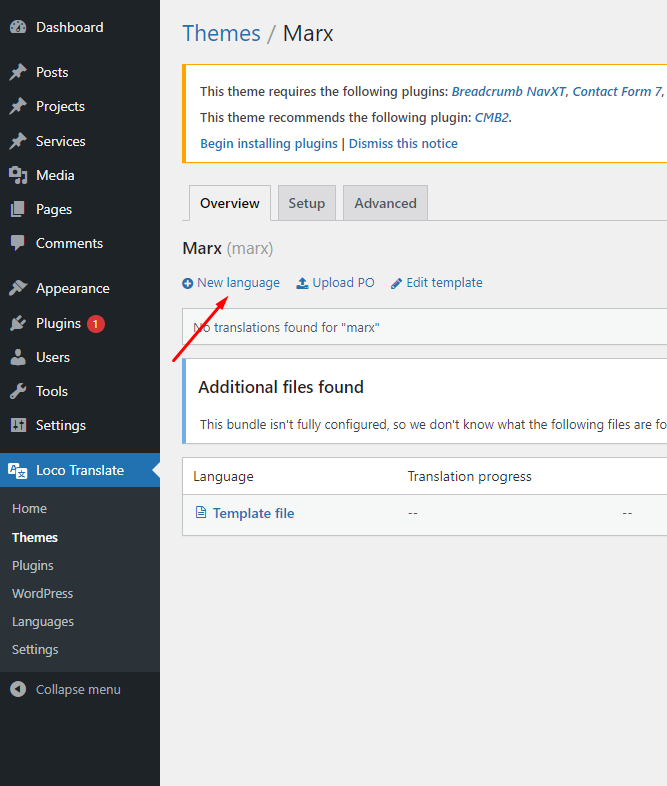
After synced the strings, the next step is to add new language you wish to translate. Go to **Loco Translate -> Themes**, select your theme and click on **New Language**.

<figure><img src="https://2950202805-files.gitbook.io/~/files/v0/b/gitbook-x-prod.appspot.com/o/spaces%2F5QDqgOY34Px2djkabwQD%2Fuploads%2FbC4j6O0ymvOE4qkwVaXt%2Fnew%20language.png?alt=media&#x26;token=90d93030-5cfc-4a17-ac95-231a9bbb6484" alt=""><figcaption></figcaption></figure>

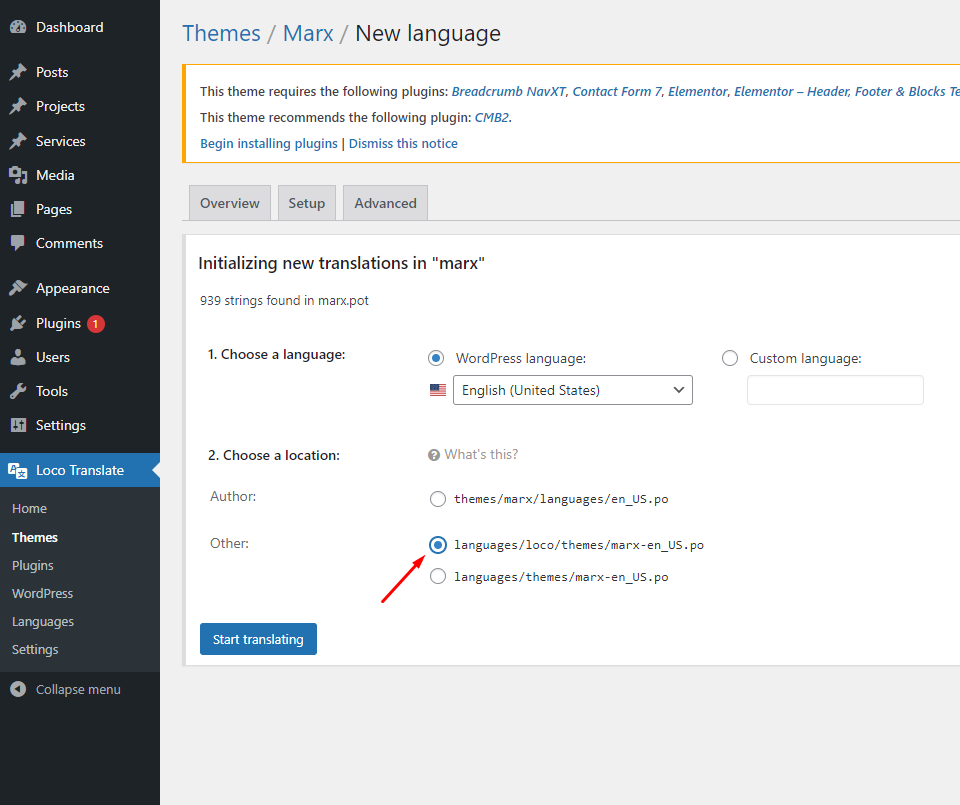
Here, select the language which you would like to translate from the dropdown menu.

<figure><img src="https://2950202805-files.gitbook.io/~/files/v0/b/gitbook-x-prod.appspot.com/o/spaces%2F5QDqgOY34Px2djkabwQD%2Fuploads%2FMrBIKvLVFMwKccyktdgX%2Fnew%20language%202.png?alt=media&#x26;token=ea5ed8f6-ace0-457f-b633-a649d26ccc06" alt=""><figcaption></figcaption></figure>

***Remember**: In order to keep your new translation files remain safe from the theme update, I recommend that you select **System** option.*

## 4. Translating the theme

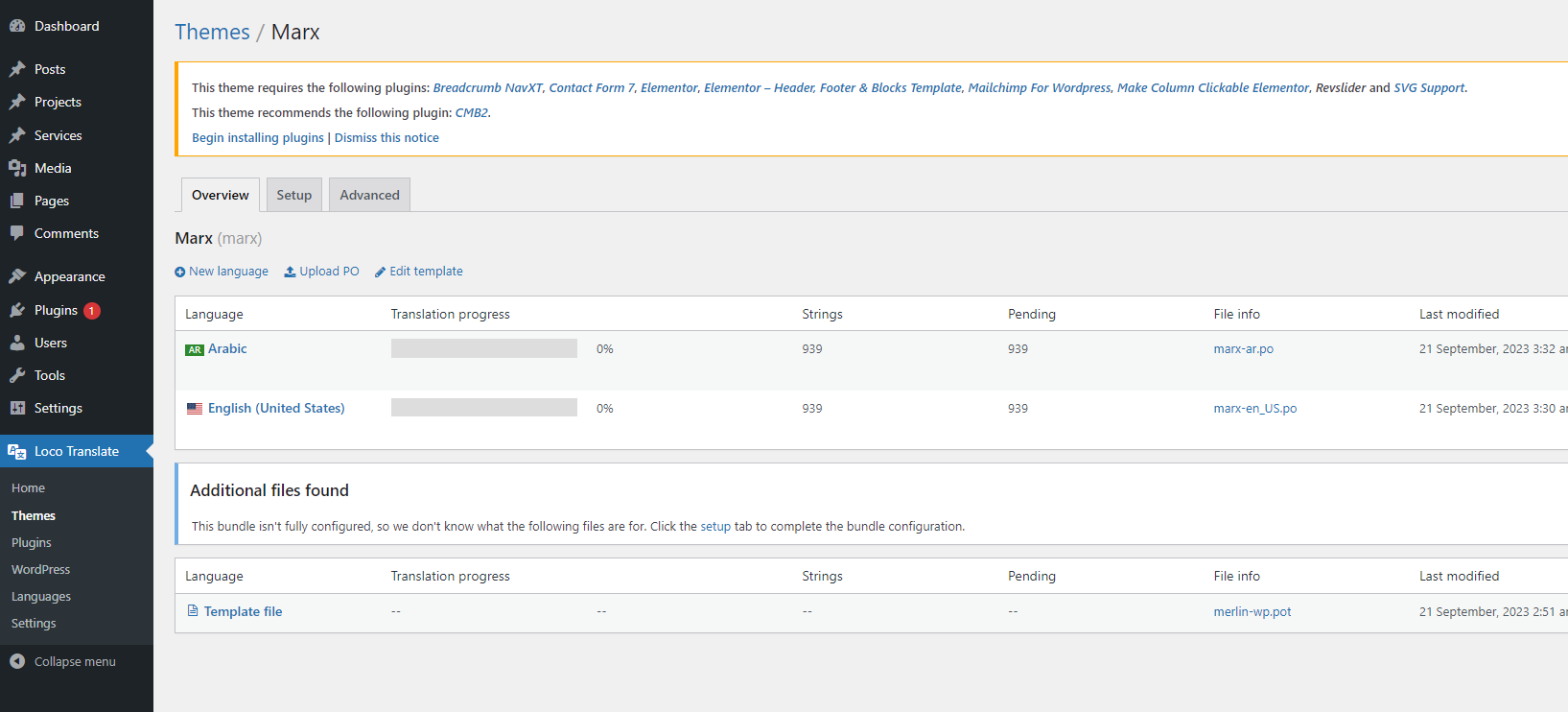
After doing this, **Ekommart** is ready to be translated into **Arabic**. Simply click on  **Arabic**

<figure><img src="https://2950202805-files.gitbook.io/~/files/v0/b/gitbook-x-prod.appspot.com/o/spaces%2F5QDqgOY34Px2djkabwQD%2Fuploads%2FtSNpngWES7iv4jTlW9ZV%2Fnew%20language%204.png?alt=media&#x26;token=bb965a12-cfa7-4402-a7e5-124382b2af49" alt=""><figcaption></figcaption></figure>

You’ll be directed to the following screen

<figure><img src="https://2950202805-files.gitbook.io/~/files/v0/b/gitbook-x-prod.appspot.com/o/spaces%2F5QDqgOY34Px2djkabwQD%2Fuploads%2FohSr4UHSHrY8W4BSgHh6%2Fnew%20language%203.png?alt=media&#x26;token=181539f3-fb73-40fb-8df0-e689e9cfdfbf" alt=""><figcaption></figcaption></figure>

In order to start translating, click on the word or phrase you want to translate or you can use **Filter** box at the top of page to search the terms. After that, click on it and then it will be entered into **Source text** section.

<figure><img src="https://2950202805-files.gitbook.io/~/files/v0/b/gitbook-x-prod.appspot.com/o/spaces%2F5QDqgOY34Px2djkabwQD%2Fuploads%2Fk1mGJUKLfc867qWSOX74%2Fnew%20language%206.png?alt=media&#x26;token=6cb8e4c7-30ad-4e57-87b1-6238941126a2" alt=""><figcaption></figcaption></figure>

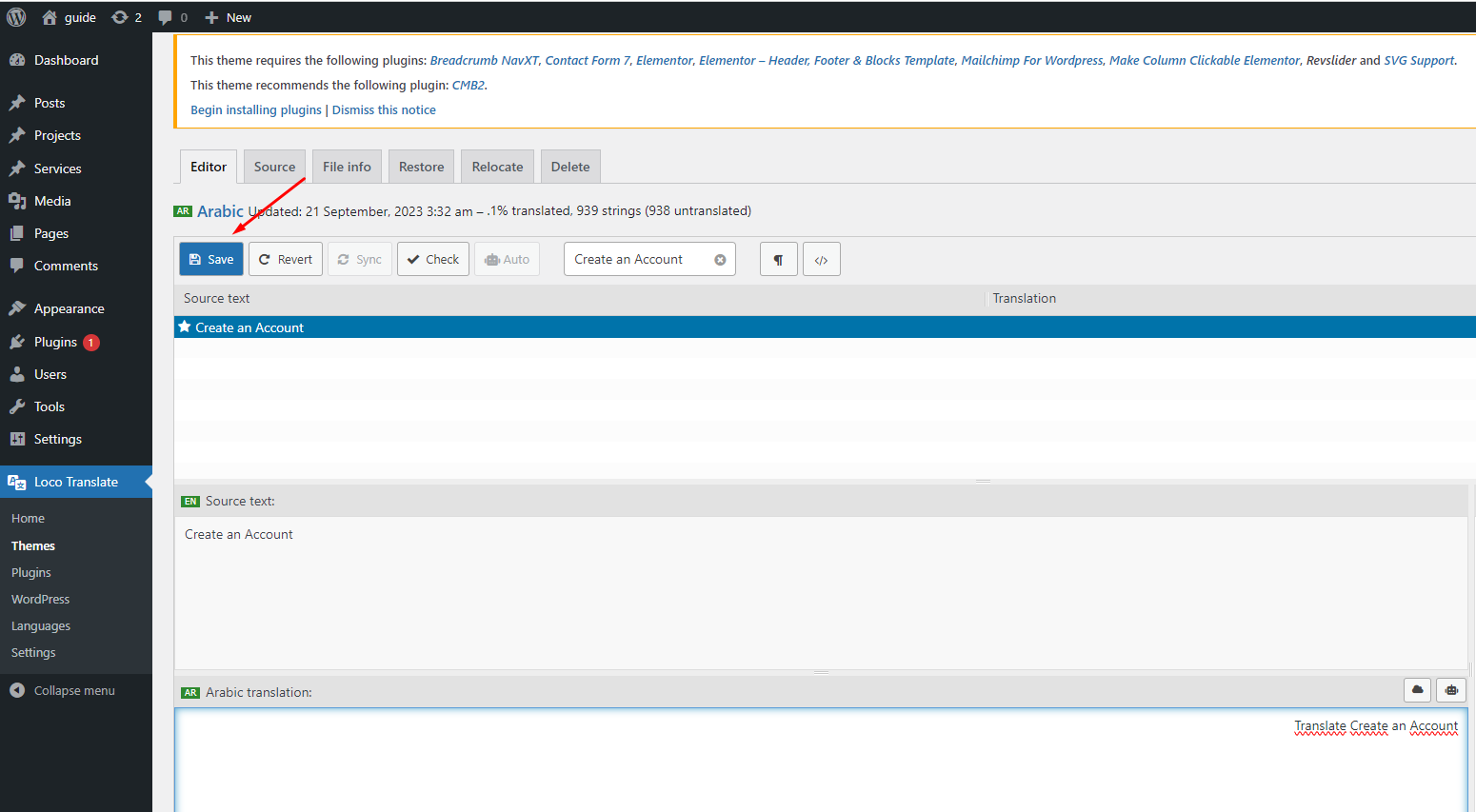
Now, you can enter the translation for word or phrase into **Arabic** section. If the language you wish to translate is not your own language, it is always safe to use [Google Translate](https://translate.google.com/). Make sure to click **Save** to complete the translation.

<figure><img src="https://2950202805-files.gitbook.io/~/files/v0/b/gitbook-x-prod.appspot.com/o/spaces%2F5QDqgOY34Px2djkabwQD%2Fuploads%2FUAjTzG33s0KTACj63YIP%2Fsave%20new%20language.png?alt=media&#x26;token=597fc9ec-49d1-415c-a710-0fabaa3a244c" alt=""><figcaption></figcaption></figure>

Now, you can go to the front-end of your website, any strings you have translated will appear for visitors to see.