> For the complete documentation index, see [llms.txt](https://wpdocs.gitbook.io/vineland/llms.txt). Markdown versions of documentation pages are available by appending `.md` to page URLs; this page is available as [Markdown](https://wpdocs.gitbook.io/vineland/content-management/blog.md).
# Blog
**1. Create the blog post**
**Step 1** - Log in to your WordPress Administration Panel (Dashboard).
**Step 2** - Click the '**Posts**' tab.
**Step 3** - Click the '**Add New**' sub-tab.
**Step 4** - Start filling in the blanks: enter your post title in the upper field, you can add the content of the post by us elementor to create.
**Step 5** - As needed, select a category, add tags, and fill in the meta settings below the editor.
**Step 6** - Upload a featured image for your post.
**Step 7** - Select Post Format. You can create a blog post with a lot of **Formats** like links, galleries images..... Select the format on the Format box form in the right sidebar.

**Step 9** - When your post is ready, click **Publish**.
**2. Manage Posts**
Navigate to **Posts** → **All Posts**
You can see all information on your blog post, add new, edit, or delete them.
**3. Create a Blog Page**
**Option 1. Create a Blog Page with Elementor**
**Step 1** - Log in to your WordPress Administration Panel (Dashboard).
**Step 2** - Click on **Pages** > **Add New**.
**Step 3** - Give your page a name then Change the Editor to Backend Editor ( you need to have the Elementor plugin activated ).
**Step 4** - Click on the **Edit with Elementor** button
**Step 5** - Select the WordPress widget.
**Option 2. Create a Blog page with the Blog template**
**Step 1** - Log in to your WordPress Administration Panel (Dashboard).
**Step 2** - Click on **Pages** > **Add New**.
**Step 3** - From Page **Attributes** -> Select Template: **Blog**.
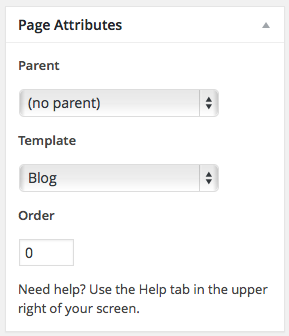
Step 4- Click **Publish**.

