# Template

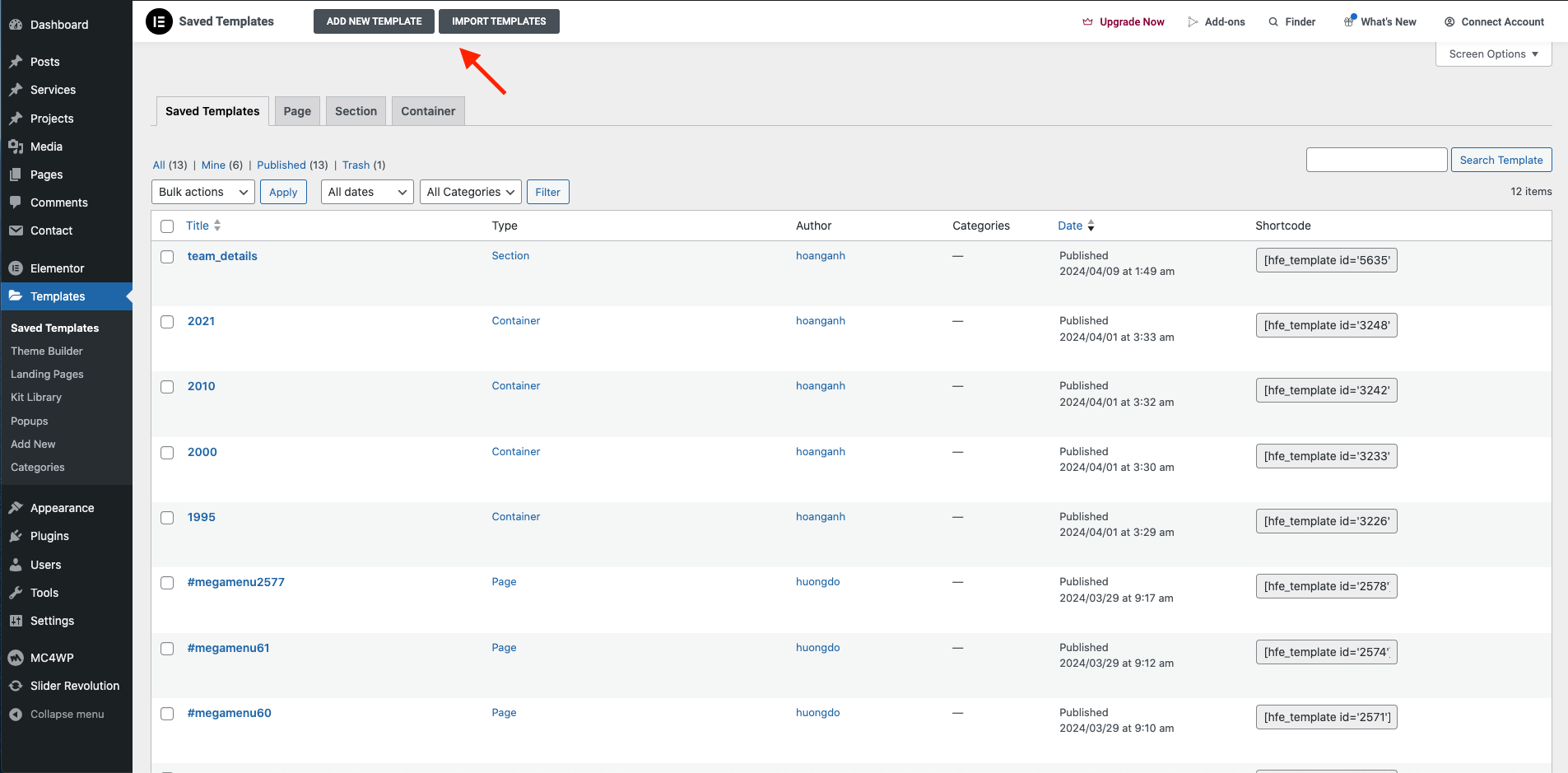
**Step 1** - From the admin Dashboard, navigate to **Templates**.

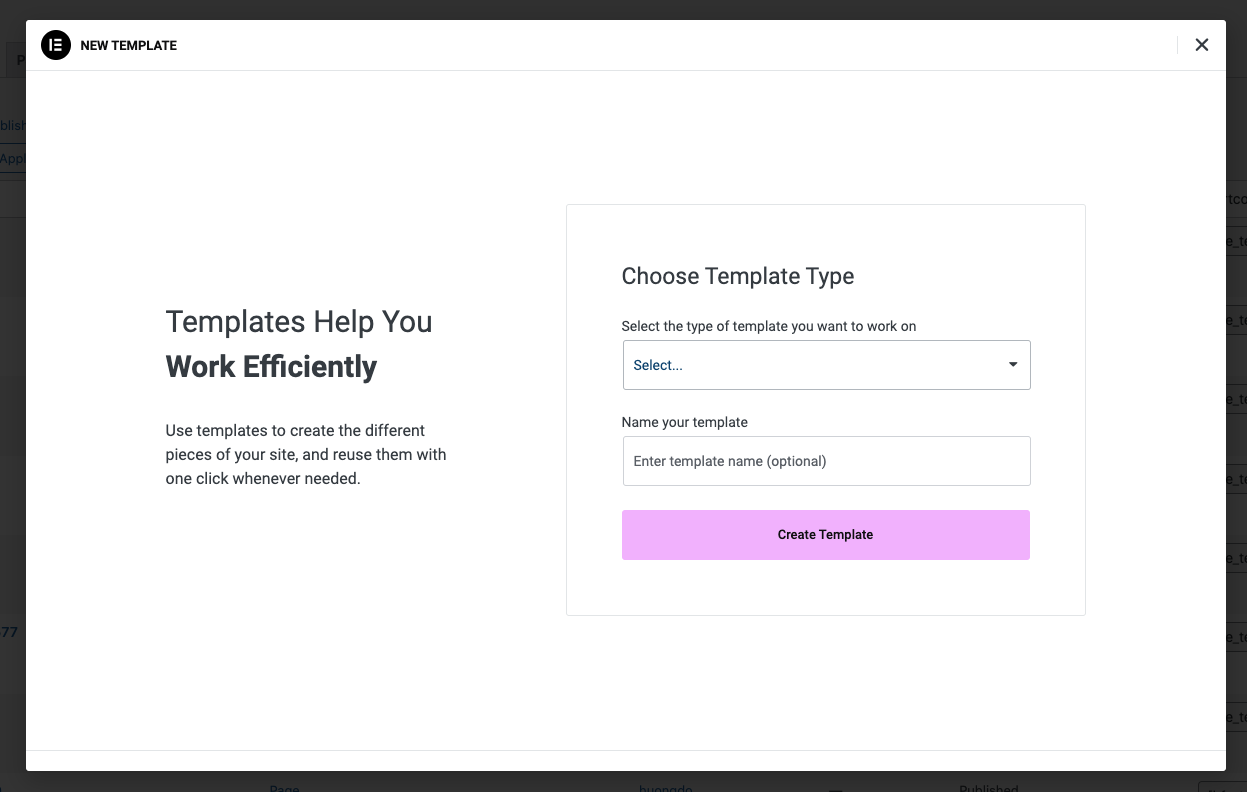
**Step 2** - Click on the "**Add New**" popup to create a new template for display. Please enter the name, select the type of your template and then click "Create Template."

<figure><img src="https://content.gitbook.com/content/3T4pdZgQSho4s9kQgCDY/blobs/EcUvAtGtSAlEIKUtLFEJ/Screen%20Shot%202024-04-09%20at%202.50.22%20PM.png" alt=""><figcaption></figcaption></figure>

<figure><img src="https://content.gitbook.com/content/3T4pdZgQSho4s9kQgCDY/blobs/yHAhQb8ac856M5KOrUS6/Screen%20Shot%202024-04-09%20at%202.51.12%20PM.png" alt=""><figcaption></figcaption></figure>

**Step 3** - Drag or drop an element that you want to build your template style with the unlimited layout.

**Step 4** - Go to the page and please click the button **Add Template.**

![](https://content.gitbook.com/content/3T4pdZgQSho4s9kQgCDY/blobs/jVxQ54n8apbCRiYu3kzh/Screen%20Shot%202024-04-09%20at%202.52.56%20PM.png)

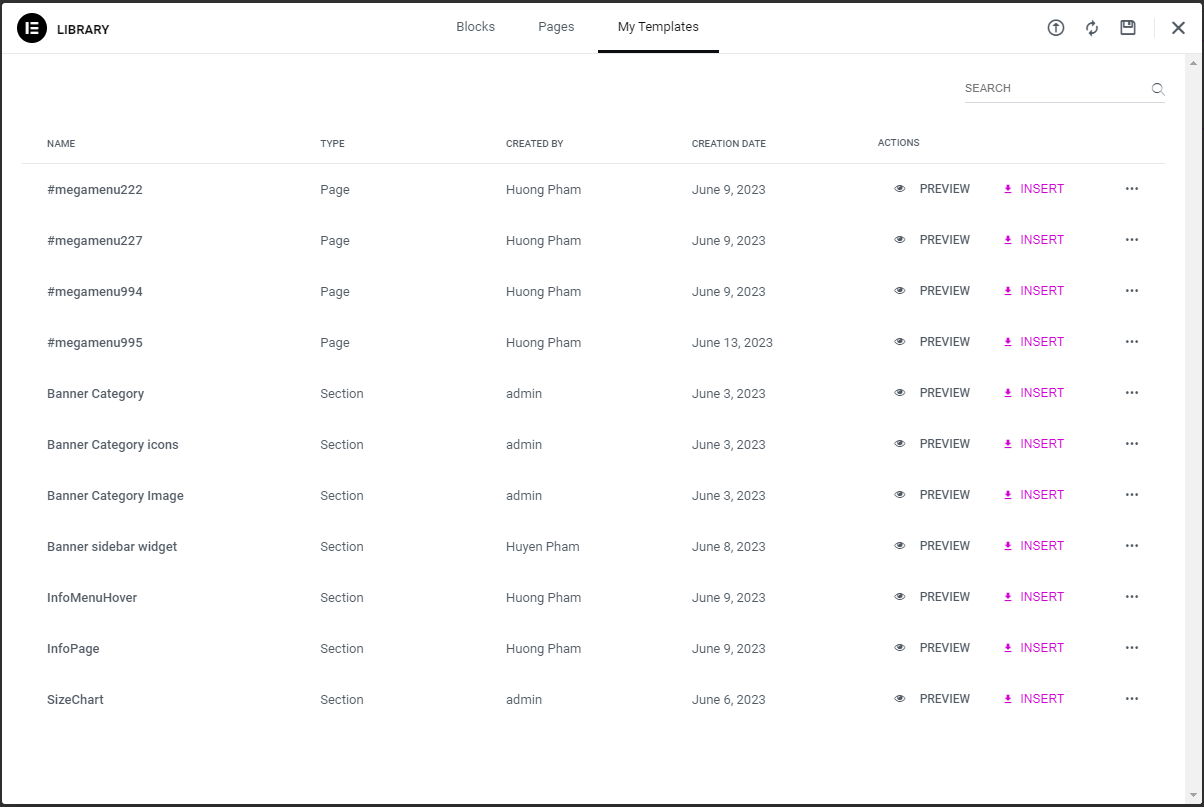
**Step 5** - Choose the tab **My Template** and you can add the template that has been created to the page.
<figure><img src="https://content.gitbook.com/content/3T4pdZgQSho4s9kQgCDY/blobs/8LxMztqvVluQ71ozNNzK/image.png" alt=""><figcaption></figcaption></figure>