# Layout
### Access the global layout settings
**To access the global layout settings**:
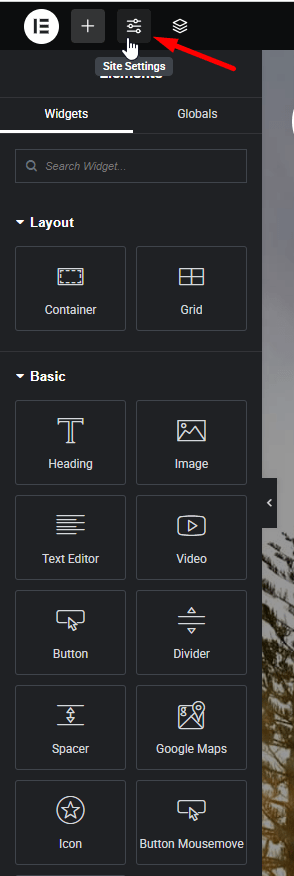
**Step 1** - In the Elementor Editor, from the top bar, click the Site Settings icon.
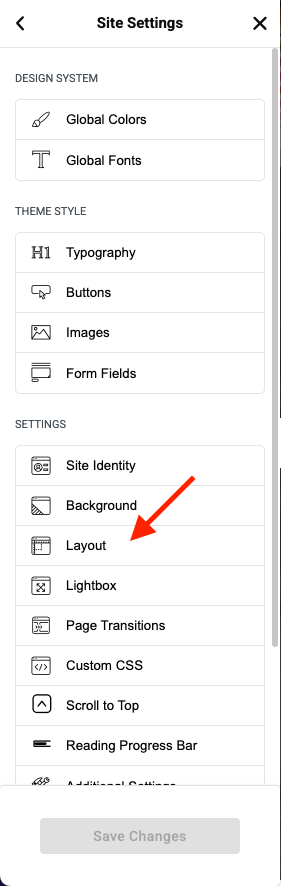
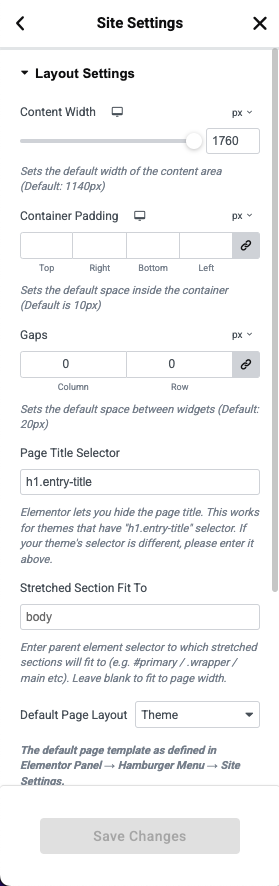
**Step 2** - In the panel, click **Layout**. You can now edit the following default settings:
* **Content width**: Sets the default width of ‘Boxed’ containers/sections. The setting generally used is 1140 pixels – designed for desktop computer screens.
* **Container padding**: When you add items to a container, the Editor keeps a certain width between the container border and the items inside it. Use the Container Padding setting to adjust this default width. Click the link icon  set different widths for the top, bottom, right and/or left of the container. For details, see [Create space with padding and margins](https://elementor.com/help/create-space-with-padding-and-margin/).
* **Gaps**: When you add items to a container, the Editor automatically adds space between them. Use the Gaps setting to determine the default amount of this space. Click the link icon  to set different amounts for the space above and below the item (column) and the space to the right and left of the item (row).
* **Page title selector**: If you want to hide the page title while editing the page title selector must appear here. By default, the selector is called **h1.entry-title** but if your theme uses a different selector, enter it here.
* **Stretched Section Fit To:** Themes have a tag that limits the width of web pages. The tag most commonly used is **body**. If your theme uses a different tag to limit page width, enter it here.
* **Default Page Layout**: In general, pages are laid out according to the theme settings. However, you can use this setting to make **Elementor Canvas** or **Elementor Full Width** the default setting. For details, see [How can I get a full screen canvas in the Editor?](https://elementor.com/help/canvas-vs-full-width/)
Then click "**Save Changes**" for settings. The Editor will use these new default settings when you create pages.