# Global Color & Fonts
### **Why should you use global fonts and colors?**
When you’re building a website, your fonts and colors should be the same across your entire site to improve the overall look. If fonts and colors vary among pages or parts, your users can become confused. This can negatively impact user retention and may cost you sales.
You can also use font and color continuity across your site to reinforce your brand and help users remember it. Font and **color continuity helps keep your brand relevant** and **ensures customers will remember and come to you** when they need a product or service.
[Elementor’s Global Fonts and Colors](https://elementor.com/academy/global-colors-fonts-creating-a-design-system-with-elementor/) enable you to update your website fonts and colors from one convenient location. This prevents you from having to repeatedly open website parts and change them individually. In this article, you’ll learn how to do this.
First, let’s look at how to access Global Settings.
### **How do I access Global Settings?**
* Once you login to Elementor, select [Edit with Elementor](https://elementor.com/academy/full-site-editing-and-dynamic-colors-in-elementor/) on the site you want to update.
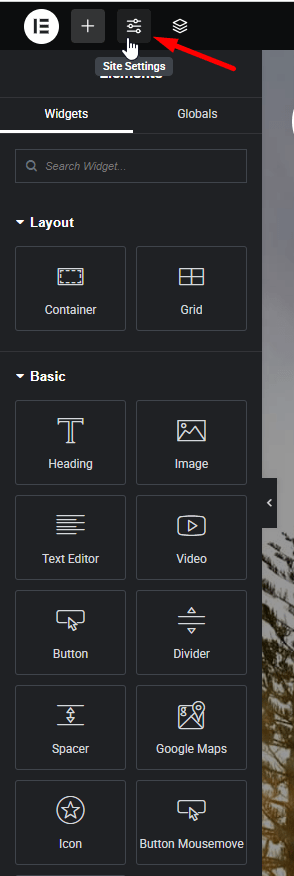
* Select Site Settings.
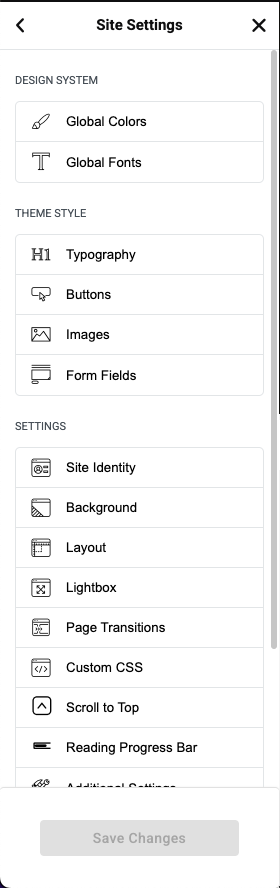
* In **Settings,** select **Site Settings**.
* Global Colors and Global Fonts are at the top of the Site Settings Menu.
You can now access either **Global Fonts** or **Global Colors**.
**Note**: If you [change the Site Settings](https://elementor.com/academy/how-to-use-elementor-site-settings/), doing so will affect all the same font or color used across your entire website. For example, if you switch the **Primary Font Color** from red to blue, all text labeled as **Primary** will become blue.
### **How do I change Global Fonts and Colors?**
There are four default groups of fonts and colors – Primary, Secondary, Text, and Accent. In the example below, we’ll modify all items labeled **Primary** on your site.
#### Change a global font:
* Click **Global Fonts**.
* Go to the font labeled **Primary** (it’s listed under System Fonts).
* Select the **Pencil icon**.
* Change attributes in the **Typography** menu.
* Close the menu.
#### Change a global color:
* Click **Global Colors**.
* Go to a font label called **Primary** (it’s listed under System Colors).
* Click the color swatch to open the **Color Picker**.
* Select the color you want from the **Color Picker.**
* Close the menu.
Setting color for your site
1. **The Primary Color** is the main color of your site.
* Regular: original color
* Hover: color when hovering items
Example: Button background color, Link Color, and some other places.
2. **Text Color** is the color of the content text.
Example: Color content, description ... in a single blog, single product, page ...
3. **Accent Color** is the color Title...
Example: Button Color, Title Tab ...
4. **Border Color** is the color border block.
Example: border product block, border form input, and places with borders ...
5. **Light Color** is the color light used for sub-description.
Example: Color categories, color date-time, color subtitle ...
Note: Color is sometimes used for many special places to see which colors apply correctly to what cases you can select and test.