# Set up Homepage
You can quickly build a home page using **Elementor** for WordPress which is a drag-and-drop frontend and backend page builder plugin that will save you tons of time working on the site content. You will be able to take full control over your WordPress site, and build any layout you can imagine – no programming knowledge required.
From your **Dashboard** admin Navigate to **Pages.**
\- Select **All Pages** to see all pages then click edit one page you want.
\- Select **Add New** to create a new page.
One page always includes a lot of parts like the Header, Main Page, Widget Sidebar, and Footer. In that section, we guide you to create the Main page by using Elementor.
## **A. How to use Elementor**
Have you ever used Elementor? Please follow that guide first: [**Elementor guide**](https://docs.elementor.com/)
[Official Plugin Documentation](https://elementor.com/) For More information about the Elementor check the official documentation.
[Watch the video about Elementor](https://youtu.be/kB4U67tiQLA).
## **B. How to Edit with Elementor**
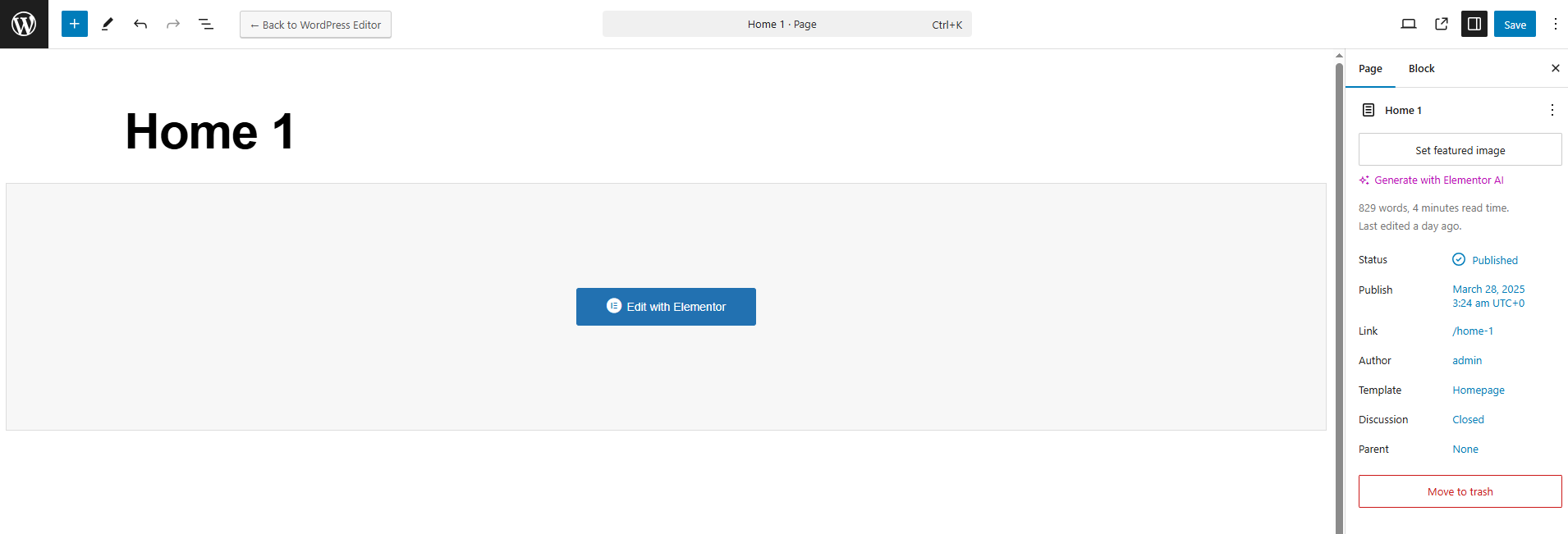
**Step 1 -** Go to your page/post, Activate the backend editor, and click "**Edit with Elementor**".
**Step 2 -** You will see all elements in the left sidebar, please choose an element that you want to use.
Or you will see buttons "Add New Section", and "Add Template", Please click to button to add an element.
**Step 3** - To modify the container you need to click on the section that you want to edit when you click on to button all content will display in the left sidebar follow you can change it.
**Step 4 - Edit Element**
**a. Edit Element:** Click on the Edit This Element (pencil icon) to edit the element, when you click to button all content will display in the left sidebar follow you can change it.
**b. Remove Element:** To remove a Container or Module you need to right-click and click delete.
**c. Add Element**
To add a Container or Module please click on to add icon (+) or you can drag an element from the left sidebar.
1. **Page Attributes:** You can select page attributes on the right sidebar of the page admin layout.
2. **Set a page as a Home Page**
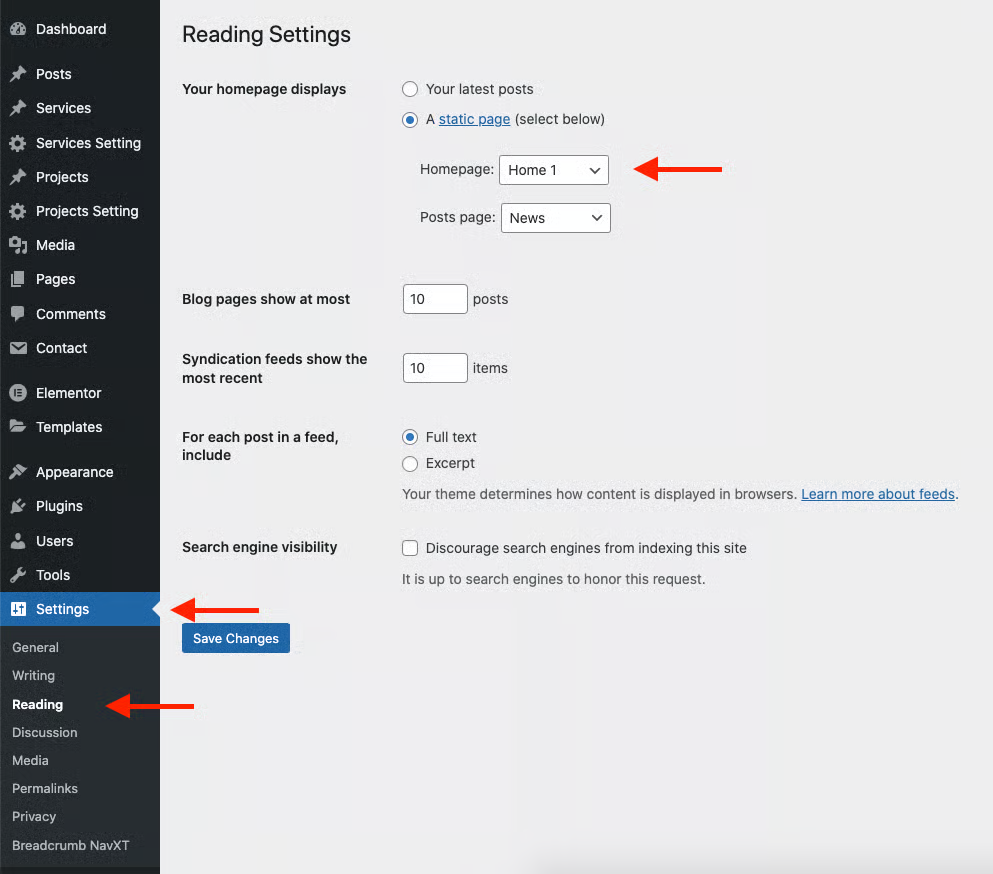
**Step 1 -** Go to **Settings** > **Reading** in your WordPress Dashboard panel.
**Step 2 -** Set "Front page displays" to a "Static Page".
**Step 3 -** In the drop-down menu for "**Front Page**" choose a page that will be your home page.
**Step 4 -** Leave the drop-down menu for "Posts page" empty, as this is not used by the theme.
**Step 5 -** Save changes.