> For the complete documentation index, see [llms.txt](https://wpdocs.gitbook.io/sunic/llms.txt). Markdown versions of documentation pages are available by appending `.md` to page URLs; this page is available as [Markdown](https://wpdocs.gitbook.io/sunic/customize/single-product.md).

# Single Product

**1: Thumbnail Style**

You can choose Style for the product

* **Vertical**

<figure><img src="https://2086204133-files.gitbook.io/~/files/v0/b/gitbook-x-prod.appspot.com/o/spaces%2FcW0W6IaHwr0aLK8S6HZo%2Fuploads%2FUDQqzrFPeeVshOQ29V4T%2FScreenshot%202024-07-09%20at%2015.09.53.png?alt=media&amp;token=ae092086-dcb8-4a0b-99dd-661585d62583" alt=""><figcaption></figcaption></figure>

* **Horizontal**

<figure><img src="https://2086204133-files.gitbook.io/~/files/v0/b/gitbook-x-prod.appspot.com/o/spaces%2FcW0W6IaHwr0aLK8S6HZo%2Fuploads%2FdVPLtMG6u6FKrJbqXM9k%2FScreenshot%202024-07-10%20at%2017.16.23.png?alt=media&amp;token=ae36de76-6f13-4306-a3bf-ee6219e3246b" alt=""><figcaption></figcaption></figure>

* **Gallery**

<figure><img src="https://2086204133-files.gitbook.io/~/files/v0/b/gitbook-x-prod.appspot.com/o/spaces%2FcW0W6IaHwr0aLK8S6HZo%2Fuploads%2FIkeHV0hzGFrsdLYqUNXF%2FScreenshot%202024-07-09%20at%2015.13.01.png?alt=media&amp;token=8bc46172-8892-4f71-b343-c598234bfe25" alt=""><figcaption></figcaption></figure>

* **Sticky**

<figure><img src="https://2086204133-files.gitbook.io/~/files/v0/b/gitbook-x-prod.appspot.com/o/spaces%2FcW0W6IaHwr0aLK8S6HZo%2Fuploads%2FsVRoWSf8gC98Vy9OBkim%2FScreenshot%202024-07-09%20at%2015.15.01.png?alt=media&amp;token=bb6a724b-8a90-40a6-a4eb-b71daa66b1ce" alt=""><figcaption></figcaption></figure>

**2: Schedule Sales with WooCmmerce**

In the WordPress admin go to Products and then click on one of your products

<figure><img src="https://2086204133-files.gitbook.io/~/files/v0/b/gitbook-x-prod.appspot.com/o/spaces%2FcW0W6IaHwr0aLK8S6HZo%2Fuploads%2FpqL2gVEdPG2vfW0FiS3L%2FScreenshot%202024-07-09%20at%2015.15.39.png?alt=media&amp;token=29eabb9c-e98d-4191-8c3f-e5902a3eeed8" alt=""><figcaption></figcaption></figure>

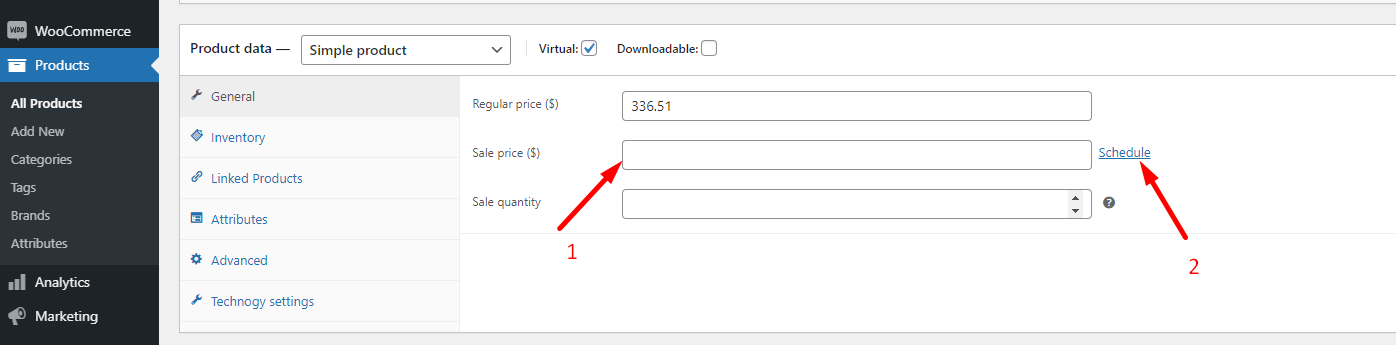
Scroll down to the **Product Data** tab and right next to the **Sale Price** click on the **Schedule** link

<figure><img src="https://content.gitbook.com/content/x35XyVT65NhOMJfefVWf/blobs/e0CZ3t0nEkcgpPpAYzlv/Screenshot_7.png" alt=""><figcaption></figcaption></figure>

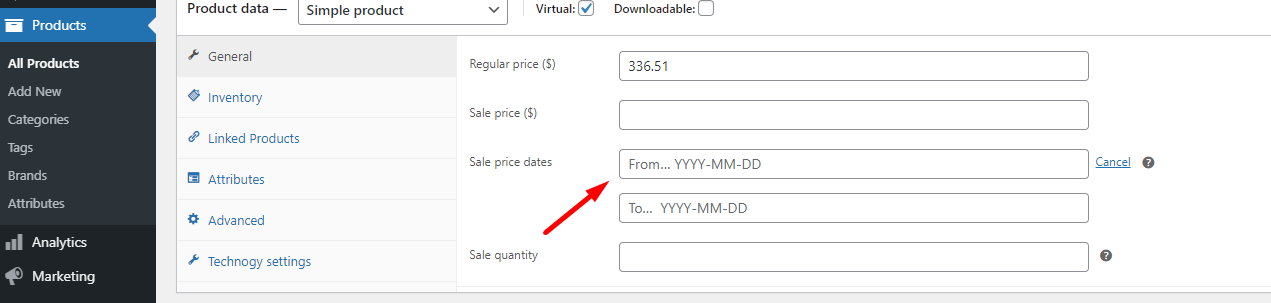
Once you click the Schedule link two new fields will popup. The start date and end date.

<figure><img src="https://content.gitbook.com/content/x35XyVT65NhOMJfefVWf/blobs/ZLtynhvT1KsbiXMHBRLp/Screenshot_8.png" alt=""><figcaption></figcaption></figure>

Click on the calendar icon to open a clickable calendar

1. 1.Go ahead and enter your dates
2. 2.Don't forget to press the **Update** button and then view your product on the front end.

#### How the Sale Date Works <a href="#how-the-sale-date-works" id="how-the-sale-date-works"></a>

The sale date is based on the time you have set for your site. That means that if someone is shopping in Bangkok which is 14 hours ahead of where I am (Denver) and it's still Thursday evening my time they won't see the sale.You can check the time zone set for your site under Settings > General > Timezone.