# Button

**Step 1** - you can go to any elementor edit page.

<figure><img src="https://1067416430-files.gitbook.io/~/files/v0/b/gitbook-x-prod.appspot.com/o/spaces%2FwlTStQZOwgDUXNvGAAWK%2Fuploads%2FqooALC9vC3MfDZ54EBG2%2Fimage.png?alt=media&#x26;token=d9a05dce-5923-4839-83c7-8e2f2a341281" alt=""><figcaption></figcaption></figure>

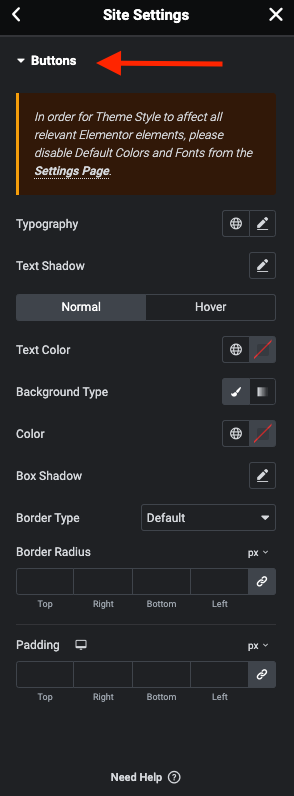
**Step 2** - Site Settings >>  Button >>

<figure><img src="https://content.gitbook.com/content/wlTStQZOwgDUXNvGAAWK/blobs/eOEhhYQ08CxZEhOqZKv2/Screenshot%202024-02-27%20at%2009.54.44.png" alt=""><figcaption></figcaption></figure>

* Style **Neotech Button widget**

<figure><img src="https://1067416430-files.gitbook.io/~/files/v0/b/gitbook-x-prod.appspot.com/o/spaces%2FwlTStQZOwgDUXNvGAAWK%2Fuploads%2FmeZWnK2zxo3k2e2v4Lxf%2FScreenshot%202024-10-28%20at%2009.57.35.png?alt=media&#x26;token=defce836-37cc-4304-8fa6-b05affeb4fc9" alt=""><figcaption></figcaption></figure>

**Step 3** - Settings Button for your site

**The Front end looks like**&#x20;

<figure><img src="https://1067416430-files.gitbook.io/~/files/v0/b/gitbook-x-prod.appspot.com/o/spaces%2FwlTStQZOwgDUXNvGAAWK%2Fuploads%2FFWkwMwajGxWiHYR4c3jV%2FScreenshot%202024-10-28%20at%2009.59.11.png?alt=media&#x26;token=c25ed5c8-96ee-49e1-aa6f-baeeac6fa500" alt=""><figcaption></figcaption></figure>