> For the complete documentation index, see [llms.txt](https://wpdocs.gitbook.io/neotech/llms.txt). Markdown versions of documentation pages are available by appending `.md` to page URLs; this page is available as [Markdown](https://wpdocs.gitbook.io/neotech/content-management/mega-menu.md).
# Mega menu
**Step 1** - Navigate to manager Menu: **Appearance > Menu**.
**Step 2** - Choose Menu you want to show the **Mega menu**.
**Step 3** - Click the button **Mega** to create the **Mega menu** for Item. So this Mega menu will show when you hover over the Item you choose to ad Mega menu.
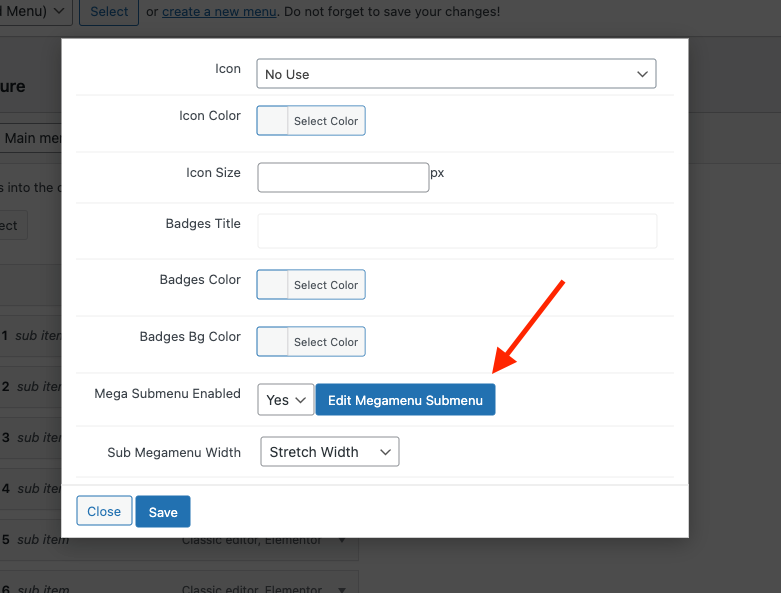
**Step 4** - A popup window is displayed. You can settings it before building content **Mega menu**.
* Click the button **Edit Megamenu Submenu** to build the **Mega menu**.
Set Width for **Mega menu.**
Note: Edits must be saved before you click **Edit Megamenu Submenu** to save your settings.
**Step 5** - Click **Edit Megamenu Submenu** then a new window will appear. You can build a **Mega menu** by **Elementor.** After finishing click Update and click.
**Step 6** - Click Save Menu.