# Template

**Step 1** - From the admin Dashboard, navigate to **Templates**.

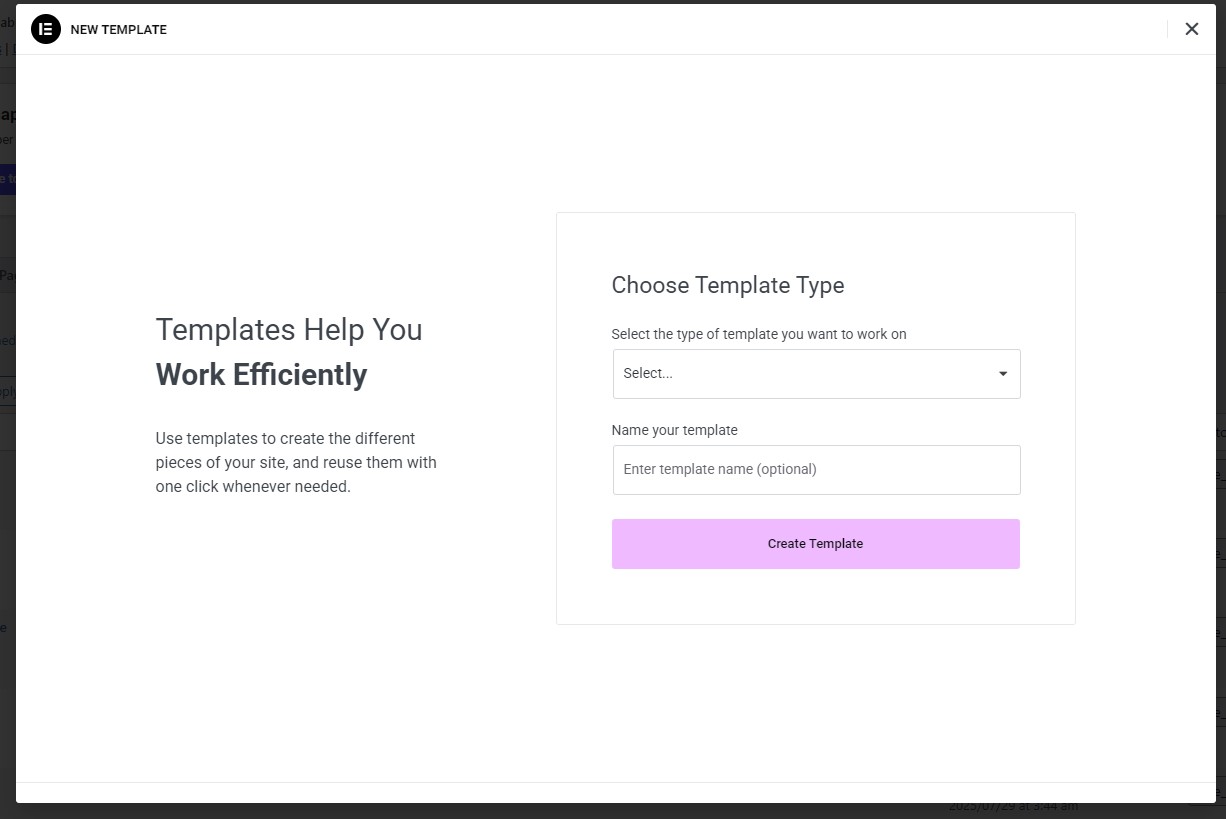
**Step 2** - Click on the "**Add New**" popup to create a new template for display. Please enter the name, select the type of your template and then click "Create Template."

<figure><img src="https://1317622182-files.gitbook.io/~/files/v0/b/gitbook-x-prod.appspot.com/o/spaces%2FHaJY7xtpjFYpIG1vHKlm%2Fuploads%2FXSK8sQvUU1ac0aQAJ0vD%2FScreenshot%202025-09-23%20at%2017.04.58.png?alt=media&#x26;token=859e548a-db56-43fc-9a8b-2e58c946efcc" alt=""><figcaption></figcaption></figure>

<figure><img src="https://content.gitbook.com/content/HaJY7xtpjFYpIG1vHKlm/blobs/a32XeUbQUZ546sTDgiPD/Screenshot_3.jpg" alt=""><figcaption></figcaption></figure>

**Step 3** - Drag or drop an element that you want to build your template style with the unlimited layout.

**Step 4**  - Go to the page and please click the button **Add Template.**

<figure><img src="https://content.gitbook.com/content/HaJY7xtpjFYpIG1vHKlm/blobs/KZgObwSBw6etdutIrzXE/Screenshot_4.jpg" alt=""><figcaption></figcaption></figure>

**Step 5** - Choose the tab **My Template** and you can add the template that has been created to the page.

<figure><img src="https://1317622182-files.gitbook.io/~/files/v0/b/gitbook-x-prod.appspot.com/o/spaces%2FHaJY7xtpjFYpIG1vHKlm%2Fuploads%2FKdDcpQOqhmYsZ4GszOCo%2FScreenshot%202025-09-23%20at%2017.07.27.png?alt=media&#x26;token=87651168-1b1a-4fab-afd3-bb5bed28edf8" alt=""><figcaption></figcaption></figure>
