# Set up Header

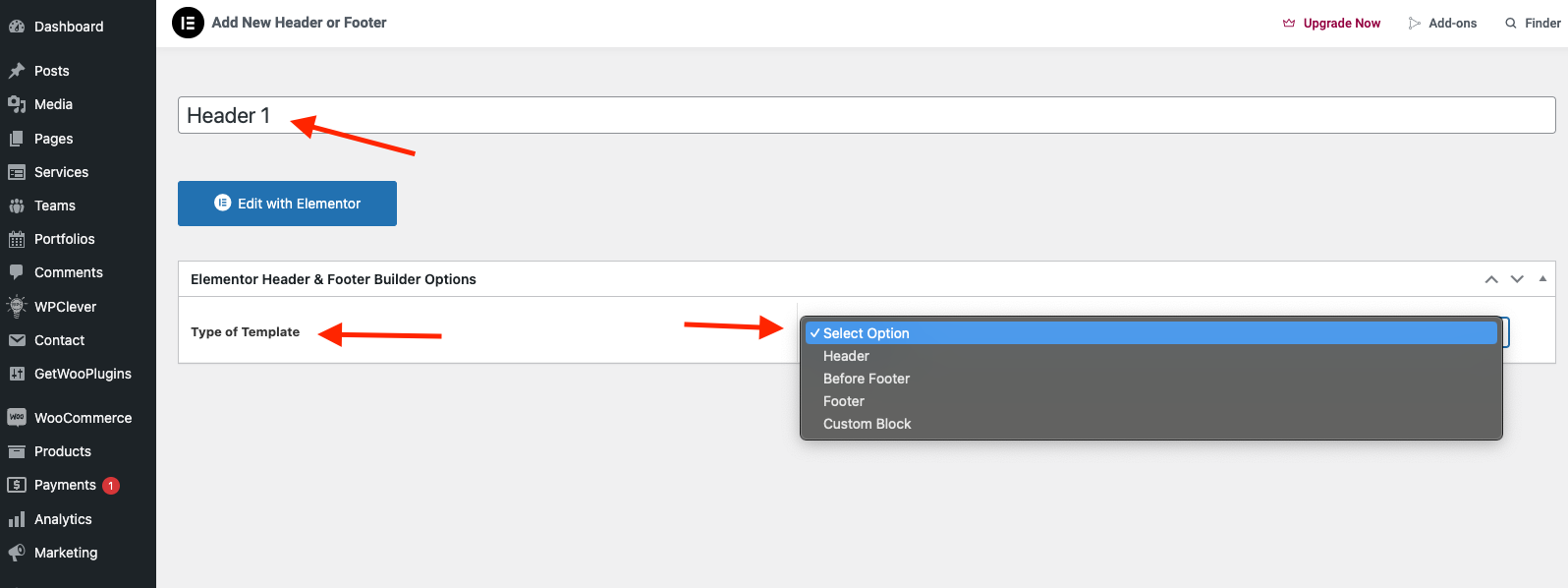
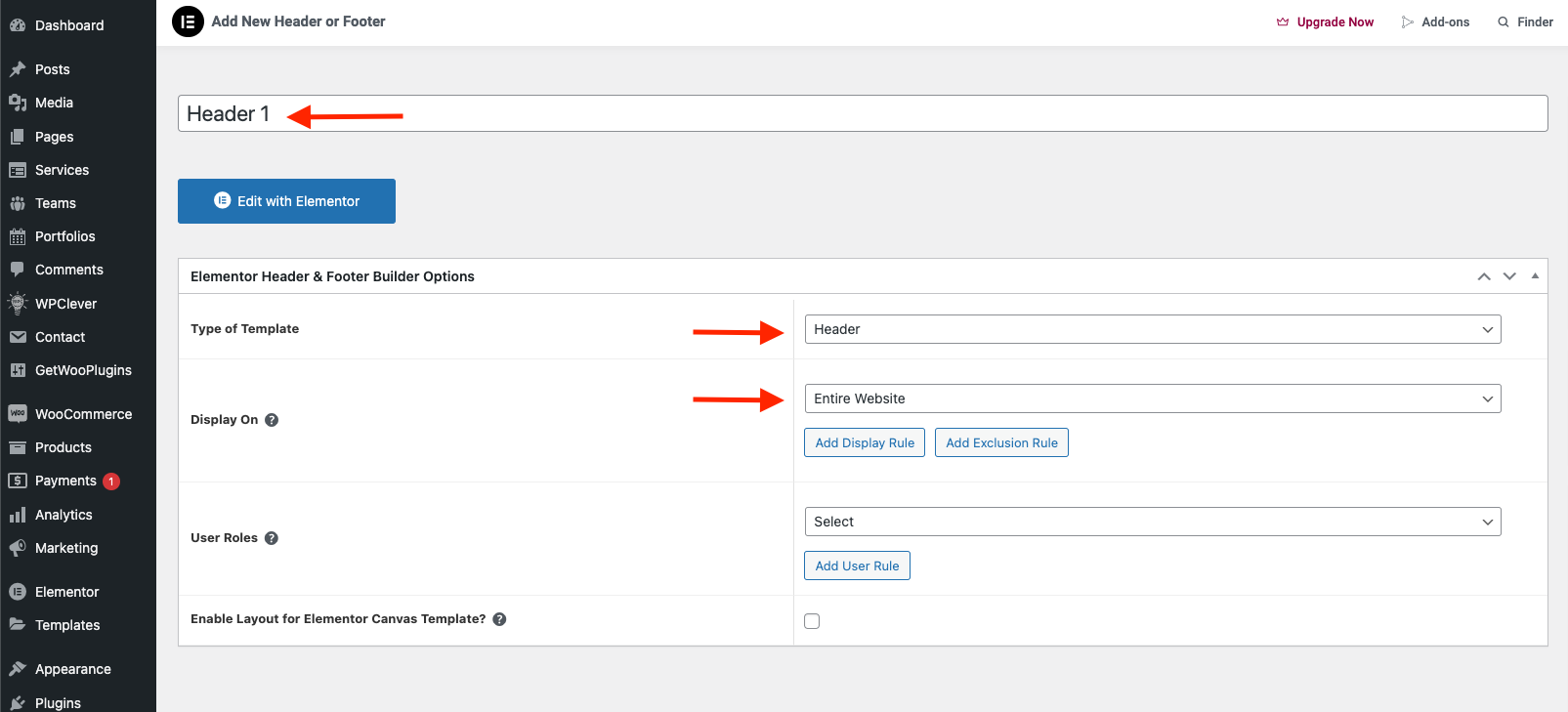
**Step 1:** Go to WordPress Dashboard > UAE > Header  & Footer Builder > Add new&#x20;

<figure><img src="https://content.gitbook.com/content/HaJY7xtpjFYpIG1vHKlm/blobs/BtZ20215g7ggqtOTpJxc/Screenshot%202024-10-28%20at%2008.48.56.png" alt=""><figcaption></figcaption></figure>

<figure><img src="https://content.gitbook.com/content/HaJY7xtpjFYpIG1vHKlm/blobs/9ttgnS56zePGCHNxKT60/Screenshot%202024-10-28%20at%2008.49.49.png" alt=""><figcaption></figcaption></figure>

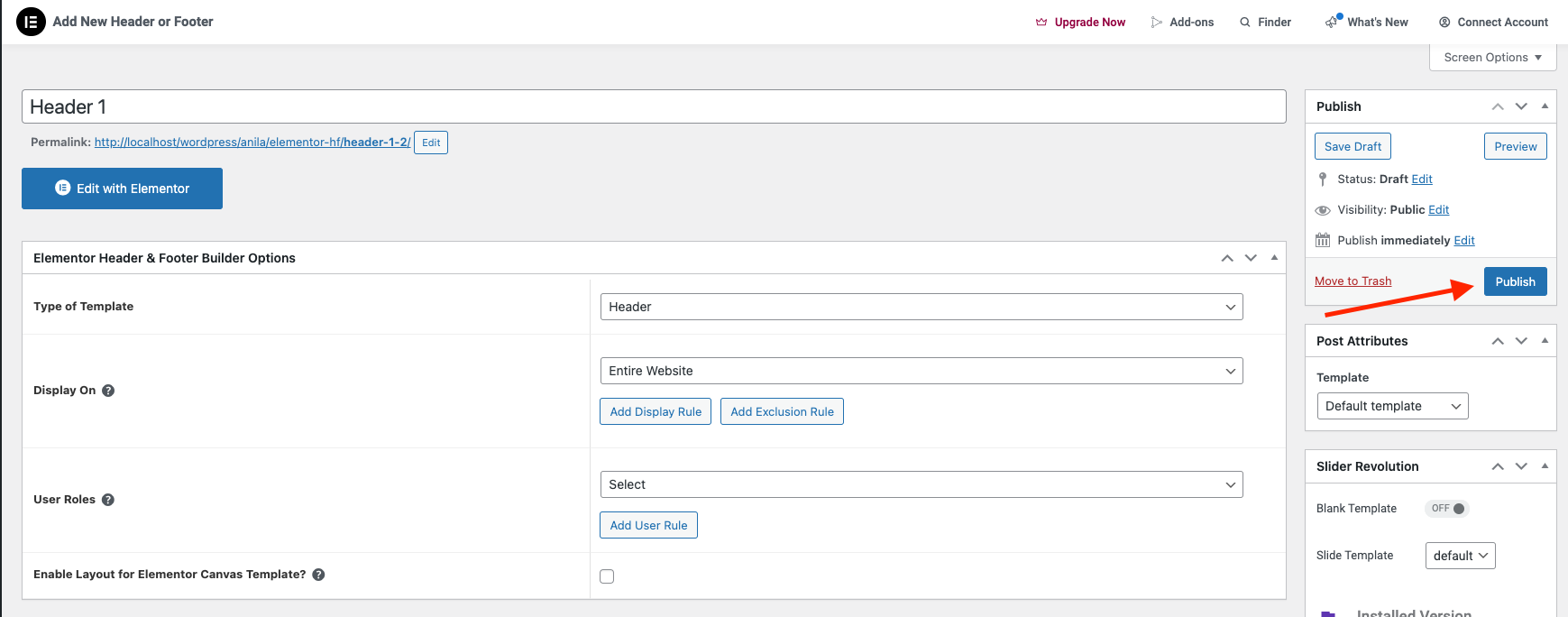
<figure><img src="https://content.gitbook.com/content/HaJY7xtpjFYpIG1vHKlm/blobs/LfBRGVXjHyRHq8wv8hrh/Screenshot%202024-10-28%20at%2008.50.50.png" alt=""><figcaption></figcaption></figure>

* Click **Publish**

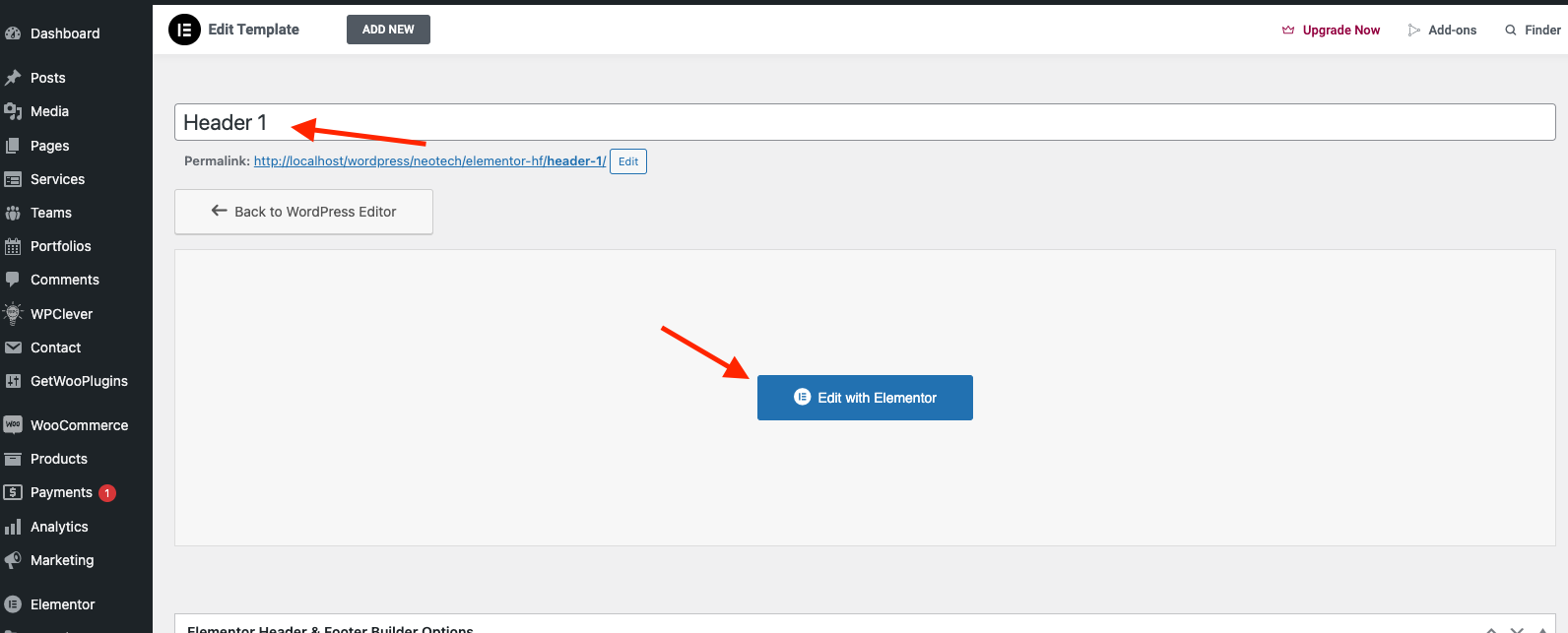
<figure><img src="https://content.gitbook.com/content/HaJY7xtpjFYpIG1vHKlm/blobs/OF5NDnmJ74MawnXlmcVq/Screenshot%202024-09-25%20at%2014.02.52.png" alt=""><figcaption></figcaption></figure>

&#x20;  \-  Add new > Edit with Elementor&#x20;

<figure><img src="https://1317622182-files.gitbook.io/~/files/v0/b/gitbook-x-prod.appspot.com/o/spaces%2FHaJY7xtpjFYpIG1vHKlm%2Fuploads%2FOzVQ2ScepyNAZRwZsKF3%2FScreenshot%202025-09-23%20at%2015.14.40.png?alt=media&#x26;token=cf2edf76-6e4d-4f77-b82c-6685aaf93ef6" alt=""><figcaption></figcaption></figure>

<figure><img src="https://content.gitbook.com/content/HaJY7xtpjFYpIG1vHKlm/blobs/4XDyjt3LDKi9BLJsrDBB/Screenshot%202024-10-28%20at%2008.52.59.png" alt=""><figcaption></figcaption></figure>

<figure><img src="https://1317622182-files.gitbook.io/~/files/v0/b/gitbook-x-prod.appspot.com/o/spaces%2FHaJY7xtpjFYpIG1vHKlm%2Fuploads%2F9bdavMkdR6AkMv50Ituv%2FScreenshot%202025-09-23%20at%2015.15.35.png?alt=media&#x26;token=ccd093ff-089c-463c-a738-59f5bff0a61e" alt=""><figcaption></figcaption></figure>

By bringing the power of the Elementor editor to the header/footer areas, you can design them any way you like, be full-width included, and be able to complete projects faster than ever. You can also save header and footer templates, and reuse them on any other project.

If you are beating yourself up right now for all the hours you lost in the past over your header design, we share your feelings.&#x20;

​**Step 2:** Menu

You can edit Header by Elementor and check widget the same:

* You can add the " Inlingua Nav Menu " widget and select Main Menu from the dropdown list. The style'' tabs are used to adjust colors and typography:

<figure><img src="https://1317622182-files.gitbook.io/~/files/v0/b/gitbook-x-prod.appspot.com/o/spaces%2FHaJY7xtpjFYpIG1vHKlm%2Fuploads%2FldWbX2lHJbA22pmz5OzN%2FScreenshot%202025-09-23%20at%2015.17.03.png?alt=media&#x26;token=30367962-c7e0-4e9a-b161-3a9e2ed55282" alt=""><figcaption></figcaption></figure>

**Step 3:** Edit "Logo" for the shop

<figure><img src="https://1317622182-files.gitbook.io/~/files/v0/b/gitbook-x-prod.appspot.com/o/spaces%2FHaJY7xtpjFYpIG1vHKlm%2Fuploads%2FZBY2WUWOxVXStHjnCKtq%2FScreenshot%202025-09-24%20at%2016.44.23.png?alt=media&#x26;token=e23cb005-f2c6-4ce1-9846-e6171ca1fe8b" alt=""><figcaption></figcaption></figure>

**Step 4:** Edit Menu Canvas Mobile

You can choose a style layout the same:

<figure><img src="https://1317622182-files.gitbook.io/~/files/v0/b/gitbook-x-prod.appspot.com/o/spaces%2FHaJY7xtpjFYpIG1vHKlm%2Fuploads%2FaI5eQkQcO10QDVVybbg1%2FScreenshot%202025-09-23%20at%2015.18.55.png?alt=media&#x26;token=b04d1e00-5b4d-47c9-b884-bb4ba42ebde5" alt=""><figcaption></figcaption></figure>

<figure><img src="https://1317622182-files.gitbook.io/~/files/v0/b/gitbook-x-prod.appspot.com/o/spaces%2FHaJY7xtpjFYpIG1vHKlm%2Fuploads%2FH83zCwI6oDagZH3qnSVH%2FScreenshot%202025-09-23%20at%2015.19.25.png?alt=media&#x26;token=99456839-4e82-42e9-8e47-be915c109600" alt=""><figcaption></figcaption></figure>

**Step 5:** To display the header as absolute, add the "header-absolute" class we created to the "CSS Class" box.

<figure><img src="https://1317622182-files.gitbook.io/~/files/v0/b/gitbook-x-prod.appspot.com/o/spaces%2FHaJY7xtpjFYpIG1vHKlm%2Fuploads%2FNRJ7Q1v9923ux3gf19Mt%2FScreenshot%202025-09-23%20at%2015.20.31.png?alt=media&#x26;token=df0f5d38-8542-4212-907c-5a3f942fdc61" alt=""><figcaption></figcaption></figure>

## &#x20;How are Conditions Displayed?

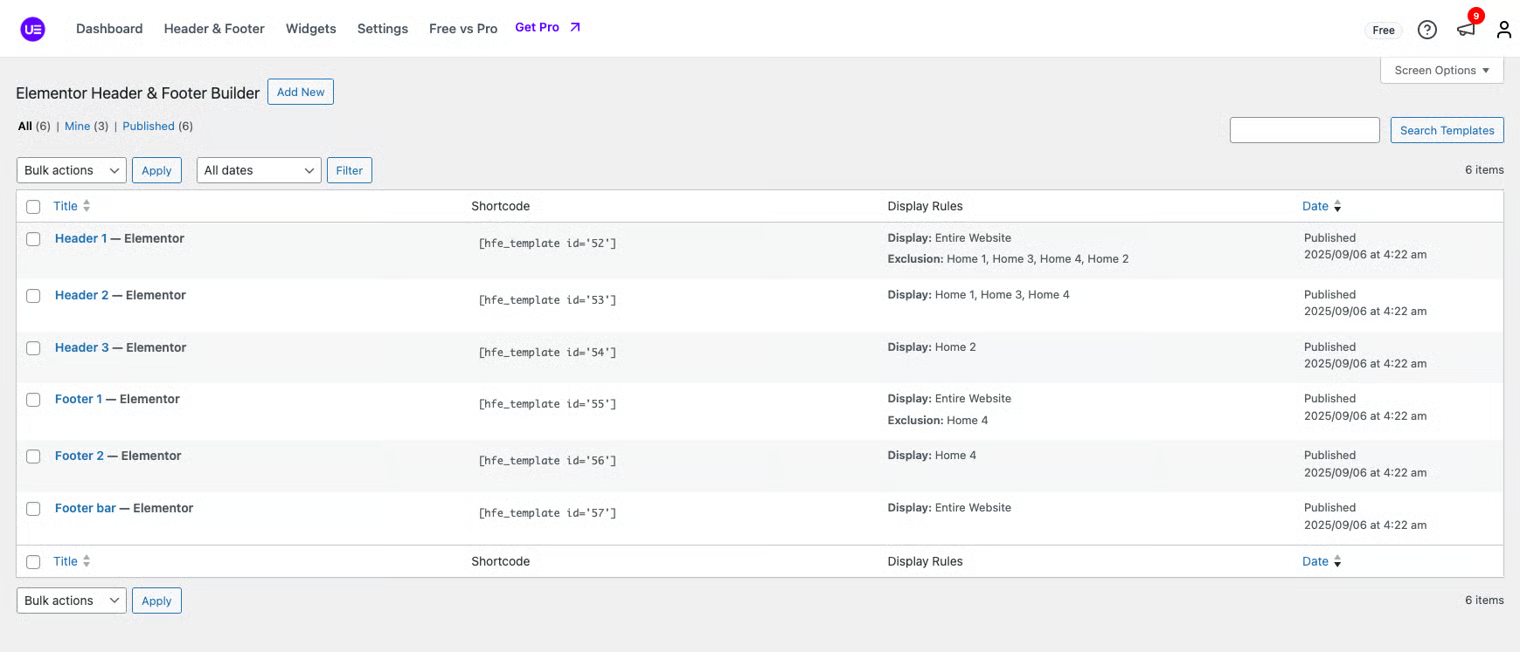
* Choose tab Header Footer & Block and you can add the template that has been created to the page.

<figure><img src="https://1317622182-files.gitbook.io/~/files/v0/b/gitbook-x-prod.appspot.com/o/spaces%2FHaJY7xtpjFYpIG1vHKlm%2Fuploads%2Fvi5LAJcLTWVeNDOMS7nc%2Fimage.png?alt=media&#x26;token=e46bd95e-e33a-4cbb-913c-9a07d18805dc" alt=""><figcaption></figcaption></figure>

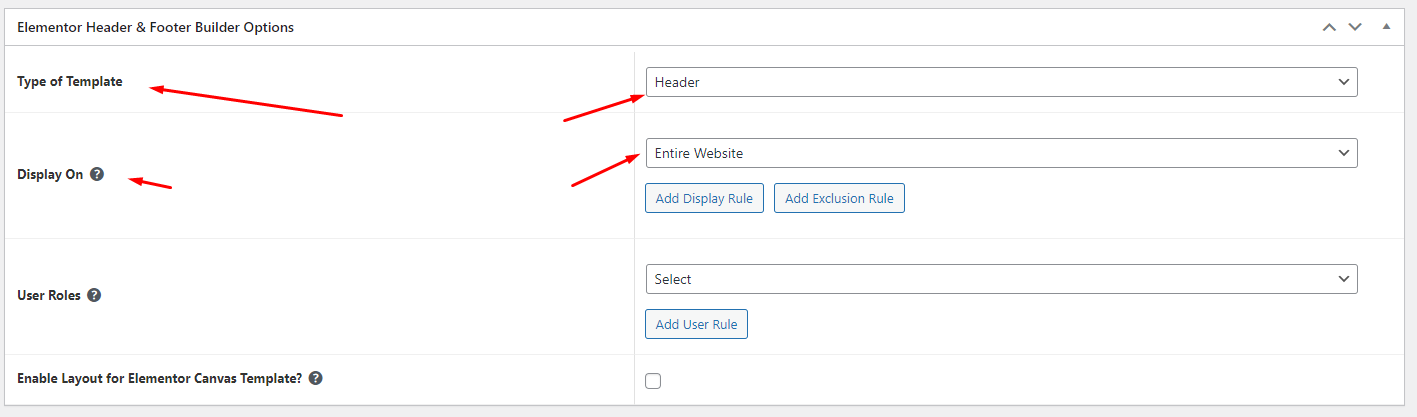
* Edit the display of your Header Footer & Blocks Template that can add the created template to the page.

<figure><img src="https://content.gitbook.com/content/HaJY7xtpjFYpIG1vHKlm/blobs/sc8G3CeN6EXCcikvOJ9h/12.png" alt=""><figcaption></figcaption></figure>

Click SAVE & CLOSE