> For the complete documentation index, see [llms.txt](https://wpdocs.gitbook.io/diteck/llms.txt). Markdown versions of documentation pages are available by appending `.md` to page URLs; this page is available as [Markdown](https://wpdocs.gitbook.io/diteck/content-management/blog.md).
# Blog
**Step 1** - Log in to your WordPress Administration Panel (Dashboard).
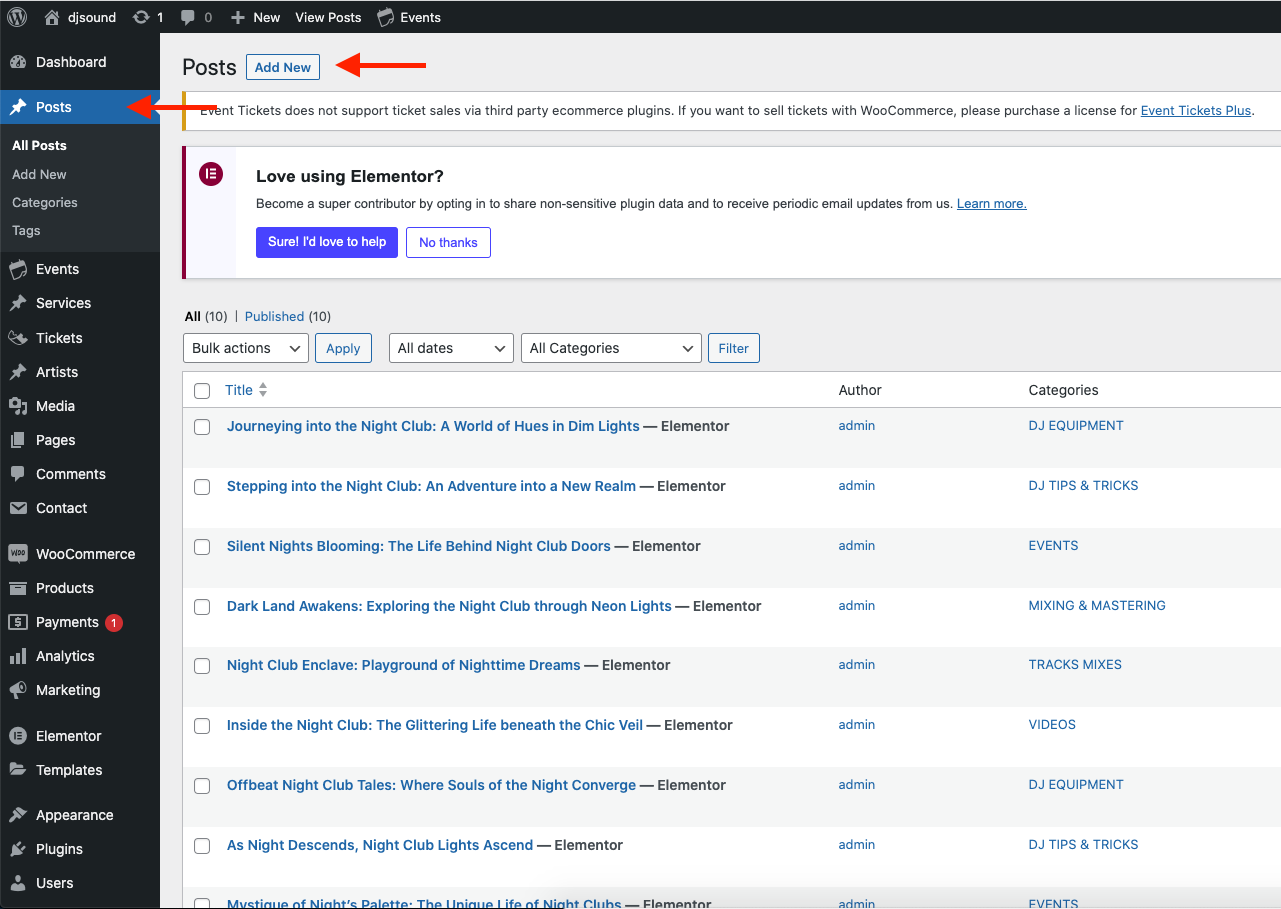
**Step 2** - Click the **Posts** tab.
**Step 3** - Click the **Add New** sub-tab.
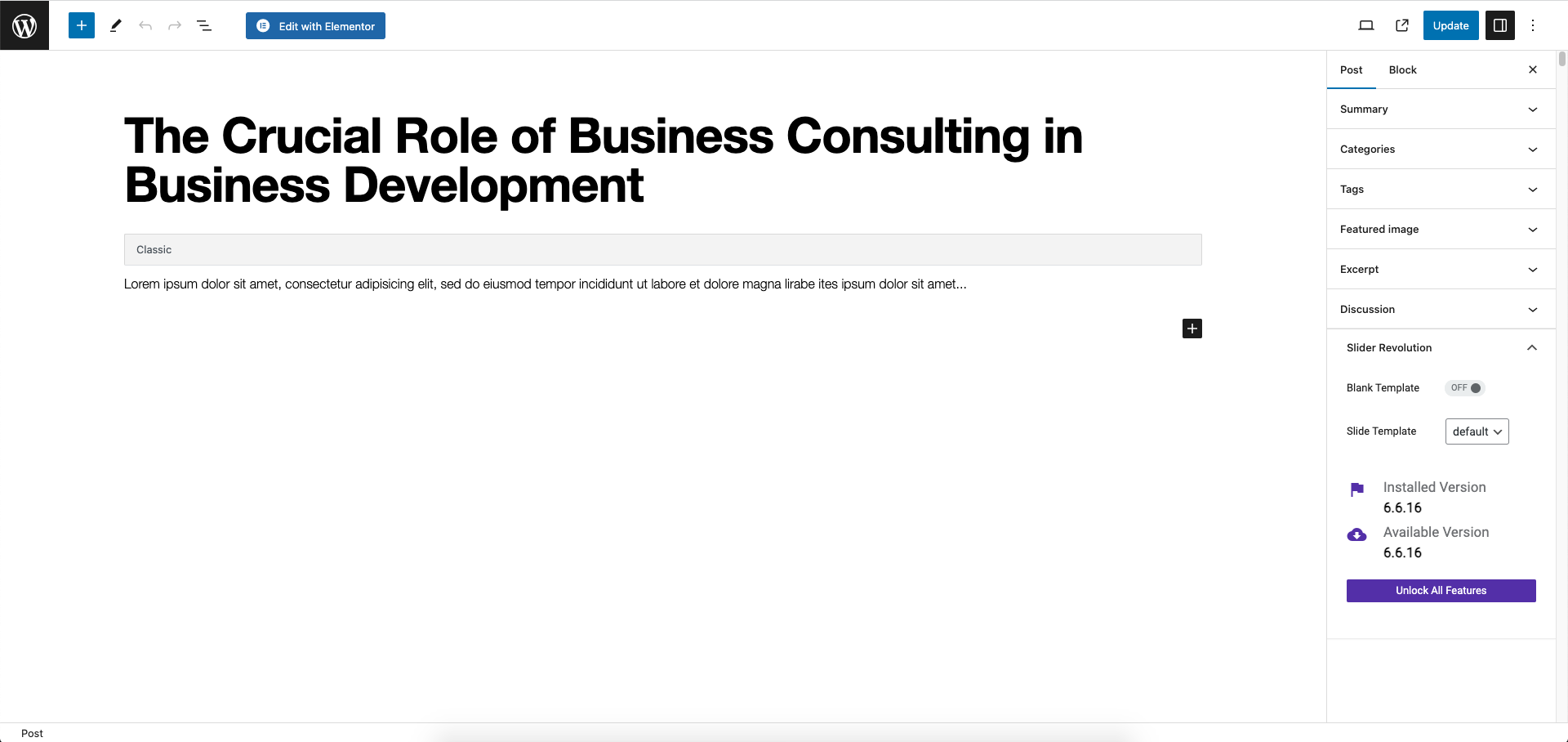
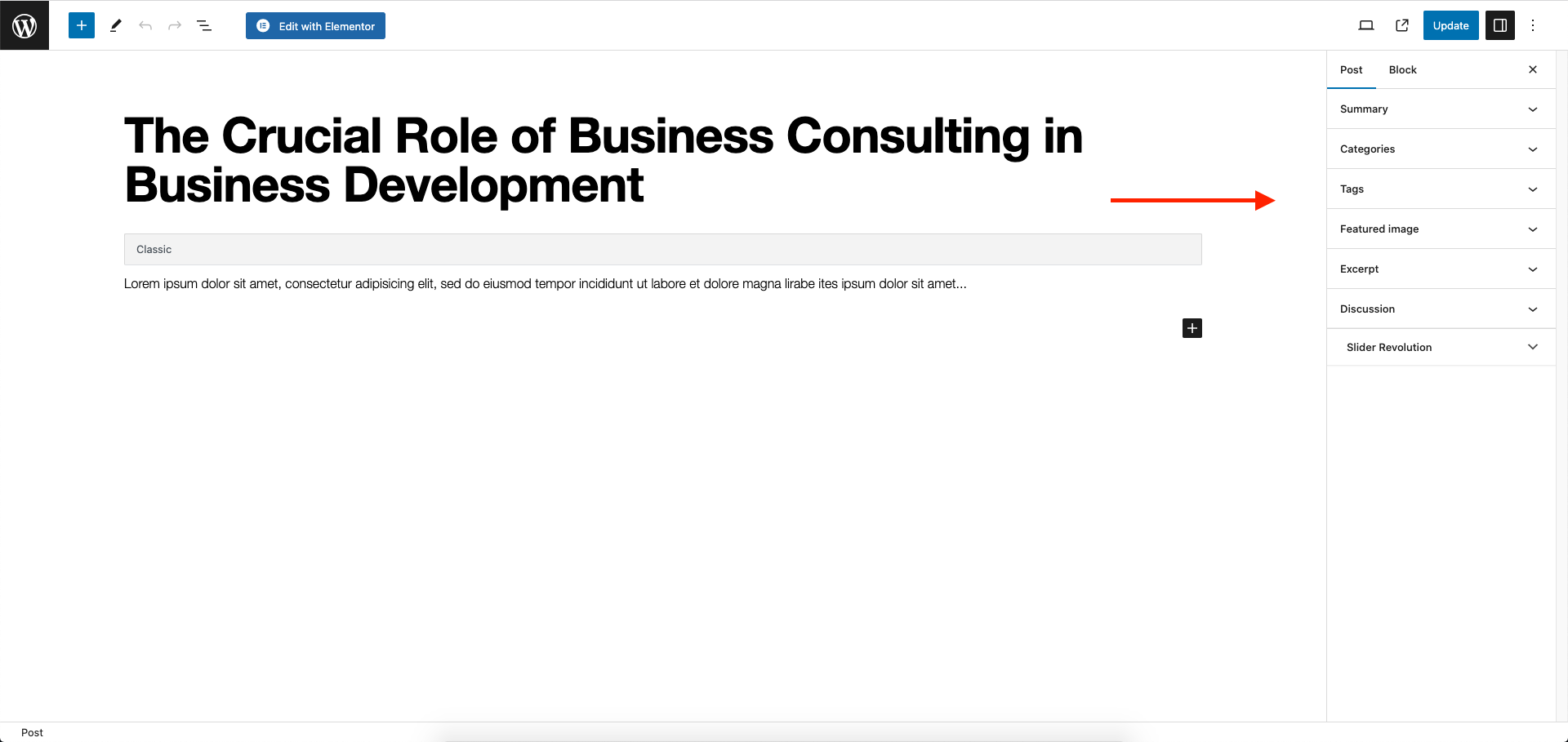
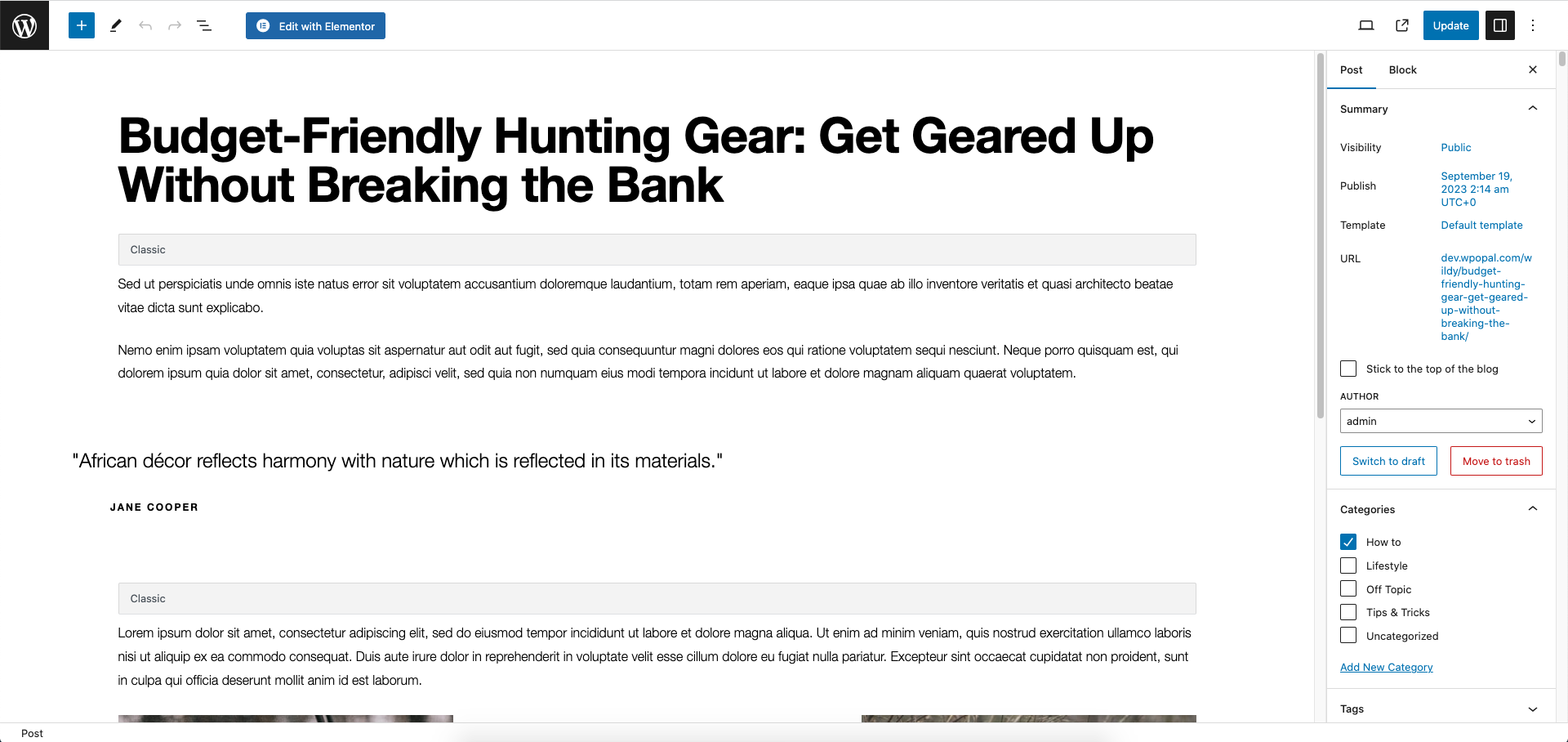
**Step 4** - Start filling in the blanks: Enter your post title in the upper field, You can add content to the post by using Elementor to create.
**Step 5** - As needed, select a category, add tags, and fill in the meta settings below the editor.
**Step 6** - Upload a featured image for your Post.
**Step 7** - Select Post Format. You can create blog posts with a lot of **Formats** like links, galleries, images.... Select format on the Format box from the right sidebar.
**Step 9** - When your post is ready, click **Publish**.
Navigate to **Posts** → **All Posts**
You can see all the information in your blog post, add new, edit, or delete them.
**Option 1. Create a Blog Page with Elementor**
**Step 1** - Log in to your WordPress Administration Panel (Dashboard).
**Step 2** - Click on **Posts** > **Add New**.
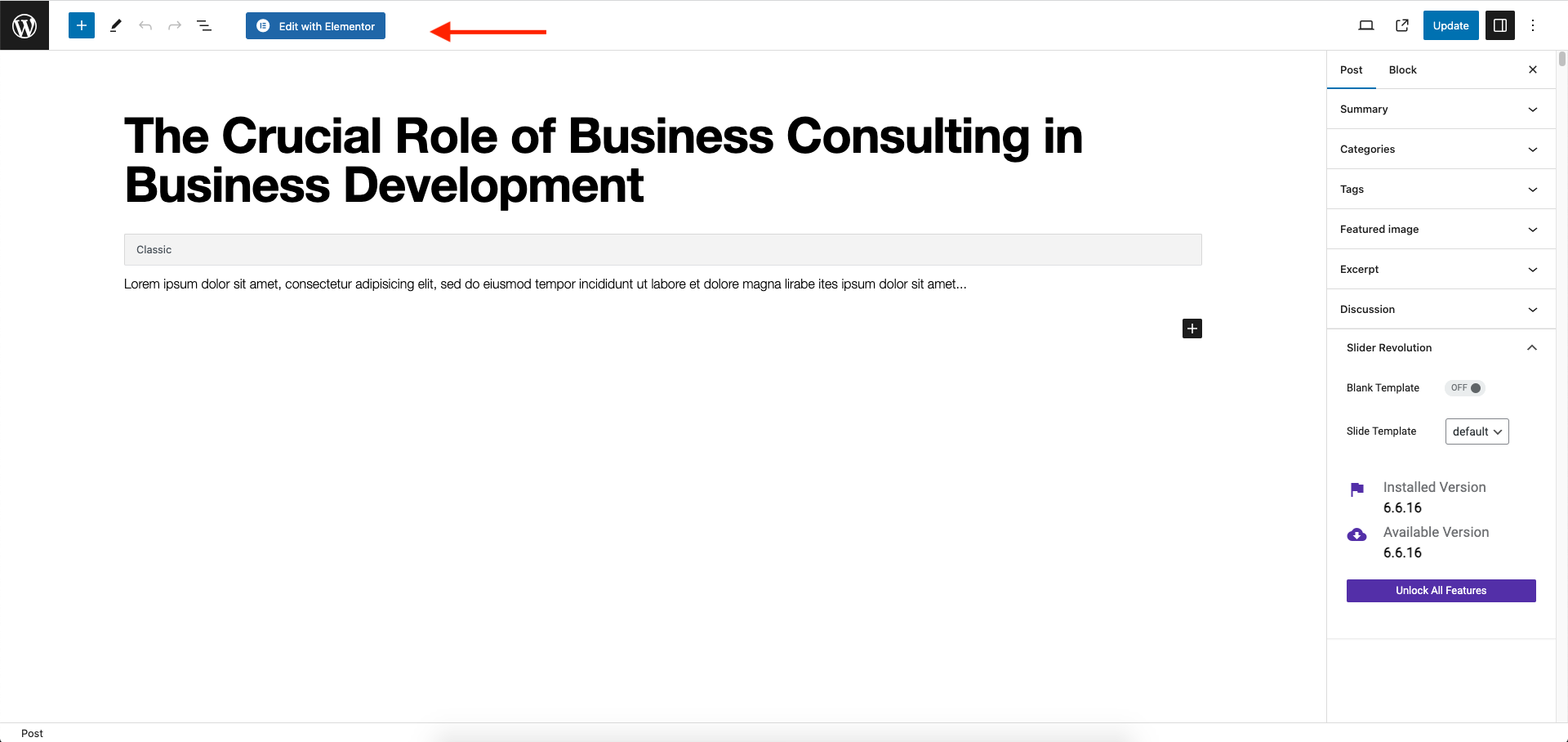
**Step 3** - Give your page a name then click on the **Edit with Elementor** button. (You need to have the Elementor plugin activated ).
**Step 5** - Drag and drop the Elementor widgets to create the blog page.
**Option 2. Create a Blog Page with WordPress Editor**
**Step 1** - Log in to your WordPress Administration Panel (Dashboard).
**Step 2** - Click on **Post** > **Add New**.
**Step 3** - Give your page a name then fill the blank with a Heading, Paragraph, and Image.
**Step 4** - Once you are done, click **Update.**