# Mega Menu

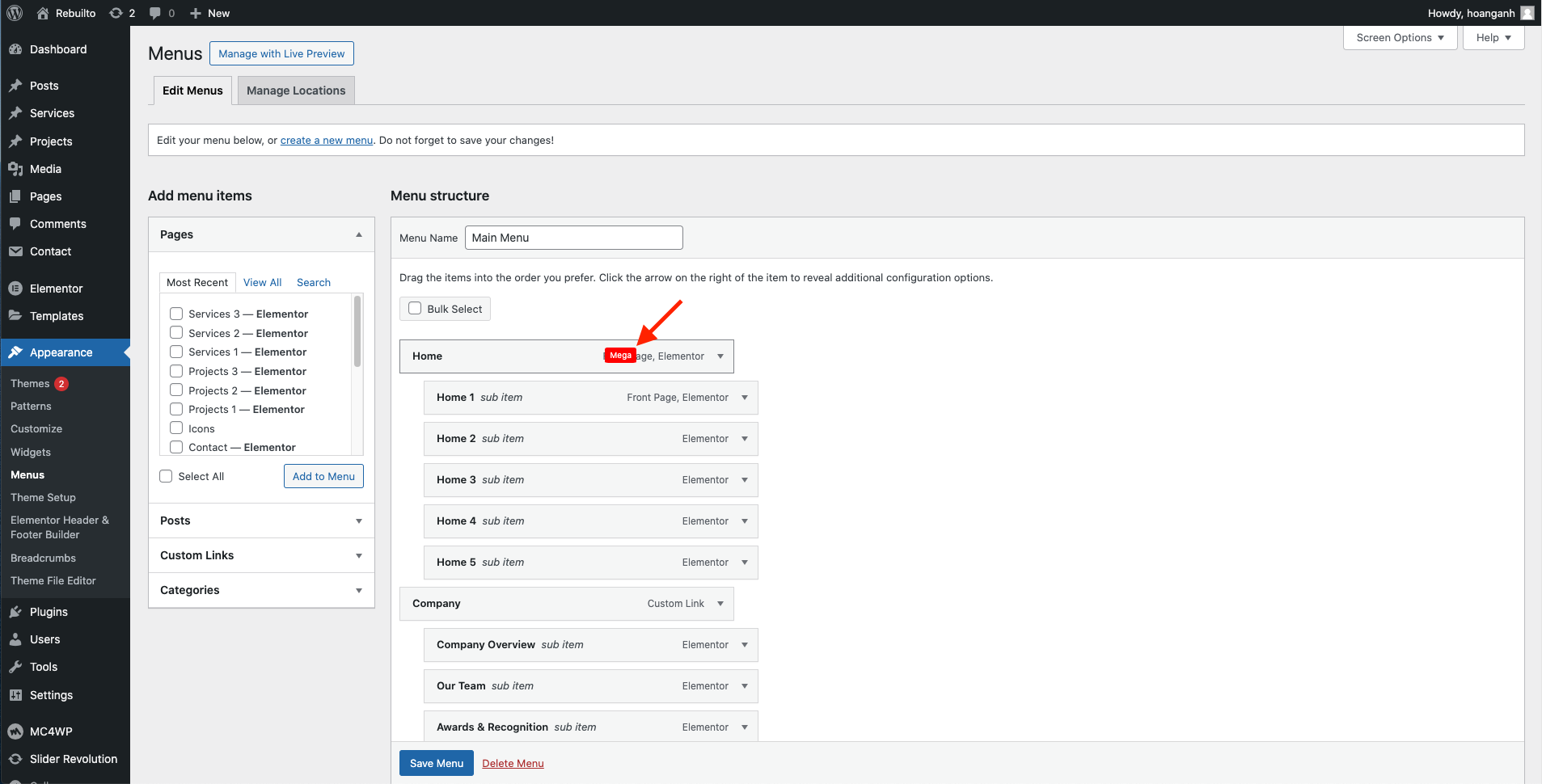
**Step 1** - Navigate to manager Menu: **Appearance > Menu**.

**Step 2** - Choose the Menu you want to show the **Mega menu**.

**Step 3** - Click the button **Mega** to create a **Mega menu** for Item. This Mega menu will show when you hover over the Item you choose to add to the **Mega menu**.

<figure><img src="https://content.gitbook.com/content/EwhwzZbxfRgrBUuruch5/blobs/mDyI6X3TStU8K7QEzRtA/Screen%20Shot%202024-04-09%20at%201.43.20%20PM.png" alt=""><figcaption></figcaption></figure>

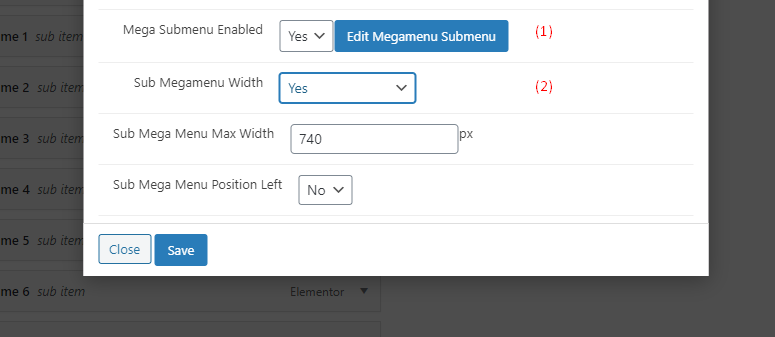
**Step 4** - A popup window is displayed. You can settings it before building the content **Mega menu**.

<figure><img src="https://content.gitbook.com/content/EwhwzZbxfRgrBUuruch5/blobs/SZFDlwSFnv3yBmV8jFyR/image.png" alt=""><figcaption></figcaption></figure>

(1) Click the button **Edit Megamenu Submenu** to build the **Mega menu**.

(2) Set the Width for the **Mega menu.**

Note: Edits must be saved before you click the **Edit Megamenu Submenu** to save your settings.

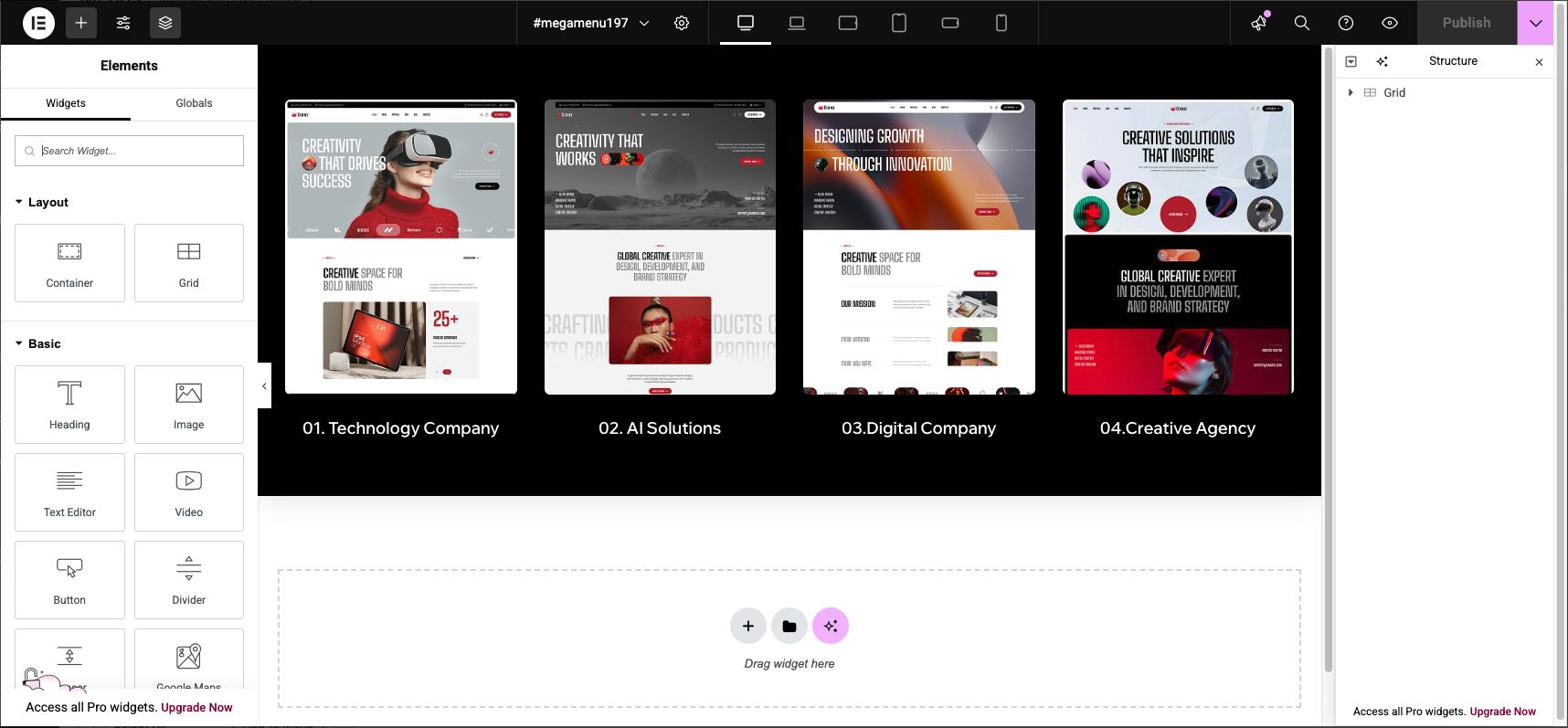
**Step 5** - Click **Edit Megamenu Submenu** then a new window will appear. You can build a **Mega menu** by Elemento&#x72;**.** After finishing click **Update**.

<figure><img src="https://2853844491-files.gitbook.io/~/files/v0/b/gitbook-x-prod.appspot.com/o/spaces%2FEwhwzZbxfRgrBUuruch5%2Fuploads%2FZRjcVRnI900zMHyhyN3V%2FScreen%20Shot%202025-10-31%20at%201.31.33%20PM.png?alt=media&#x26;token=6eeb7d55-77bc-4098-865b-0e5c85ed7162" alt=""><figcaption></figcaption></figure>

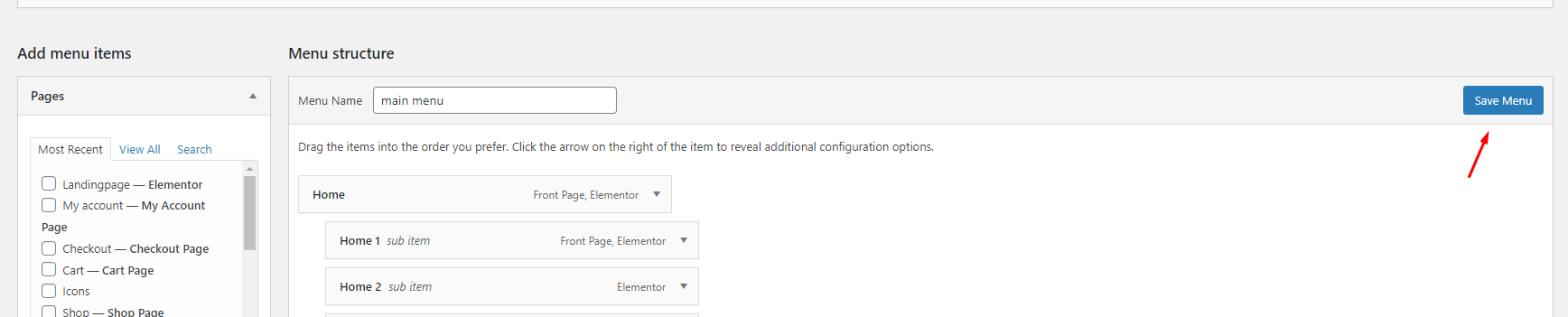
**Step 6** - Click **Save Menu**.

<figure><img src="https://content.gitbook.com/content/EwhwzZbxfRgrBUuruch5/blobs/dfTFQOXZRvQYqcOUw32i/image.png" alt=""><figcaption></figcaption></figure>