# Color
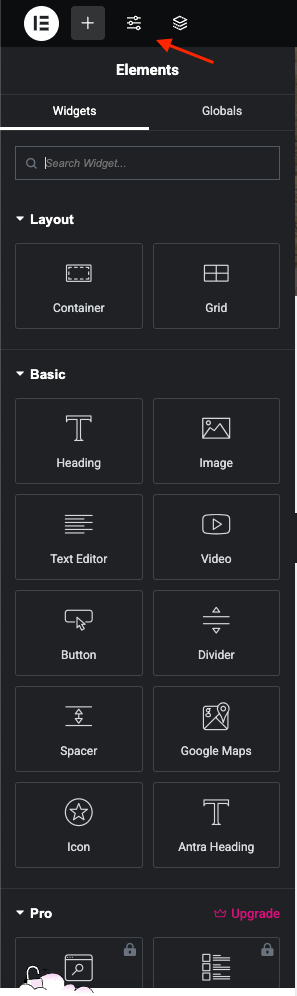
**Step 1** - You can go to the Elementor and edit page..
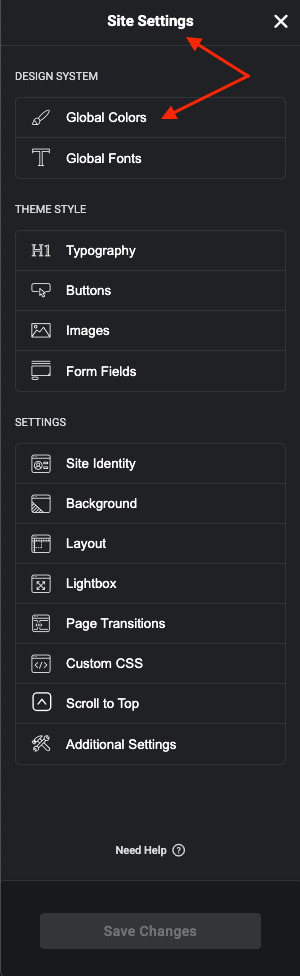
**Step 2** - Site Settings >> Global Colors >>
**Step 3** - Settings color for your site
1. **The Primary Color** is the main color of your site.
* Regular: original color
* Hover: color when hovering items
Example: Color Button, Color Link, and some other places.
2\. **Secondary** (**Heading) Color** is the color of the heading text.
Example: Color Title, Title Tab ...
3\. **Text Color** is the color of the content text.
Example: Color content, description ... in a single blog, single product, page ...
4\. **Accent** **Color** is the color of the content text.
5\. **Border Color** is the color border block.
Example: border product block, border form input, and places with borders ...
6\. **Light Color** is the color light used for sub-description.
Example: Color categories, color date-time, color subtitle ...
7\. **Dark Color** is the color light used for sub-description.
8\. **Background field** is the color Background field used for sub-description.
Note: Color is sometimes used for many special places to see which colors apply correctly to what cases you can select and test.