# Elementor config

1. Settings

&#x20;**Step 1** - Log in to your WordPress Administration Panel (Dashboard)

&#x20;**Step 2** - Click the ' **Elementor**.

<figure><img src="https://3750492702-files.gitbook.io/~/files/v0/b/gitbook-x-prod.appspot.com/o/spaces%2FXBaHzdAltWNLiqWbn5ZX%2Fuploads%2F1Ve2oeunQWgjgv2b2X0V%2FScreenshot%202024-09-25%20at%2015.02.24.png?alt=media&#x26;token=70adda43-a432-460f-a944-86624aab852b" alt=""><figcaption></figcaption></figure>

&#x20;**Step 3** - Click the '**Settings**'.

&#x20;**Step 4** - You will see all tabs for setting of elementor , in General tab

<figure><img src="https://3750492702-files.gitbook.io/~/files/v0/b/gitbook-x-prod.appspot.com/o/spaces%2FXBaHzdAltWNLiqWbn5ZX%2Fuploads%2FkLWmMP3wiyI5Cz7vmxsP%2FScreenshot%202024-09-25%20at%2015.04.10.png?alt=media&#x26;token=a4a8d105-f808-40df-ae0c-6de959e7c1fc" alt=""><figcaption></figcaption></figure>

**Step 5** - In features tab you will see all config for Features

<figure><img src="https://3750492702-files.gitbook.io/~/files/v0/b/gitbook-x-prod.appspot.com/o/spaces%2FXBaHzdAltWNLiqWbn5ZX%2Fuploads%2FhviMrxtBeeJtjF7HbfOY%2FScreenshot%202024-09-25%20at%2015.05.59.png?alt=media&#x26;token=c133b075-6573-489d-a2d9-94fc24dda4b3" alt=""><figcaption></figcaption></figure>

**Step 6** - Intergrations and Advanced display config for elementor.

<figure><img src="https://3750492702-files.gitbook.io/~/files/v0/b/gitbook-x-prod.appspot.com/o/spaces%2FXBaHzdAltWNLiqWbn5ZX%2Fuploads%2FPoiMLkcv73OXsZOci4AI%2FScreenshot%202024-09-25%20at%2015.07.05.png?alt=media&#x26;token=0633de0b-3581-4b9f-ad2e-51ed25640490" alt=""><figcaption></figcaption></figure>

**2. Tools controls**‌

&#x20;**Step 1** - Log in to your WordPress Administration Panel (Dashboard)

**Step 2** - Click the ' **Elementor**' tab.

**Step 3** - Click the '**Tools**.

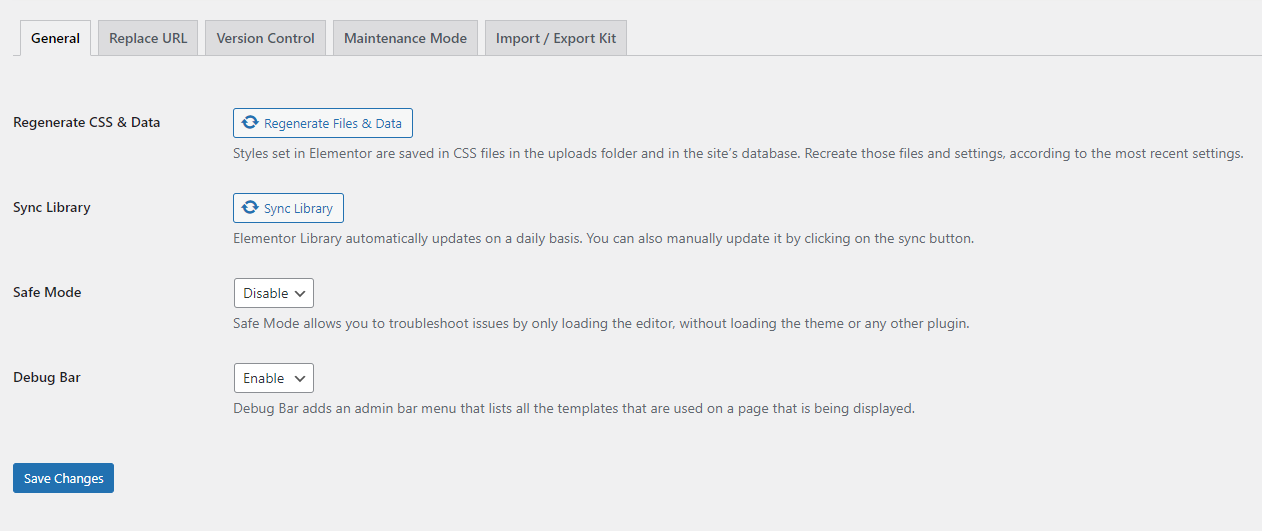
**Step 4** - You will see config for set up control for elementor , with General controls tab.

<figure><img src="https://content.gitbook.com/content/XBaHzdAltWNLiqWbn5ZX/blobs/42b0tlITw6CkqUFqBdP7/Screenshot_5.png" alt=""><figcaption></figcaption></figure>

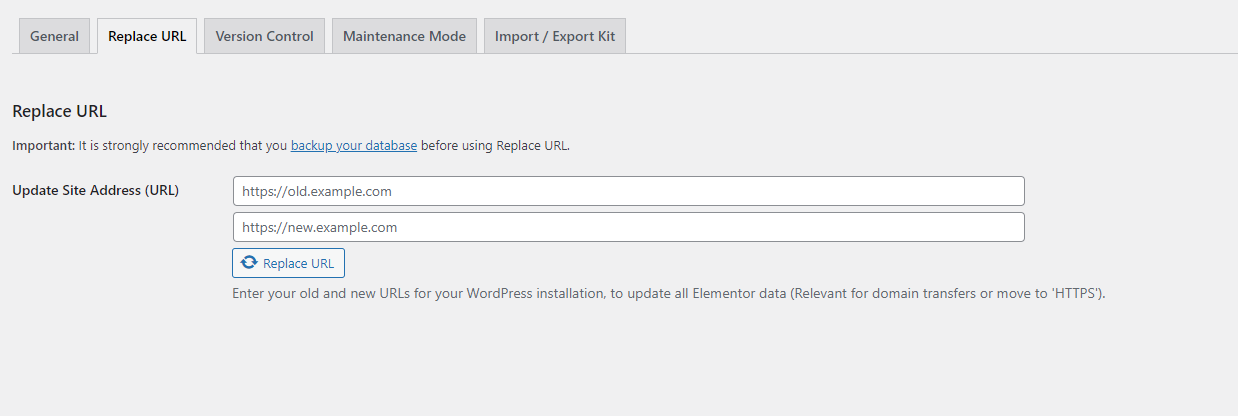
**Step 5** - Editor Replace URL tab: display config for site address....

<figure><img src="https://content.gitbook.com/content/XBaHzdAltWNLiqWbn5ZX/blobs/GNar8QDLSCH7G5n3uiUS/Screenshot_6.png" alt=""><figcaption></figcaption></figure>

**Step 6** - Version control: display config for elementor.

<figure><img src="https://3750492702-files.gitbook.io/~/files/v0/b/gitbook-x-prod.appspot.com/o/spaces%2FXBaHzdAltWNLiqWbn5ZX%2Fuploads%2FiJgT7X9aqURYVscWV756%2FScreenshot%202024-09-25%20at%2015.08.13.png?alt=media&#x26;token=b98192a1-a3c6-42e7-a54b-4e41982c0468" alt=""><figcaption></figcaption></figure>

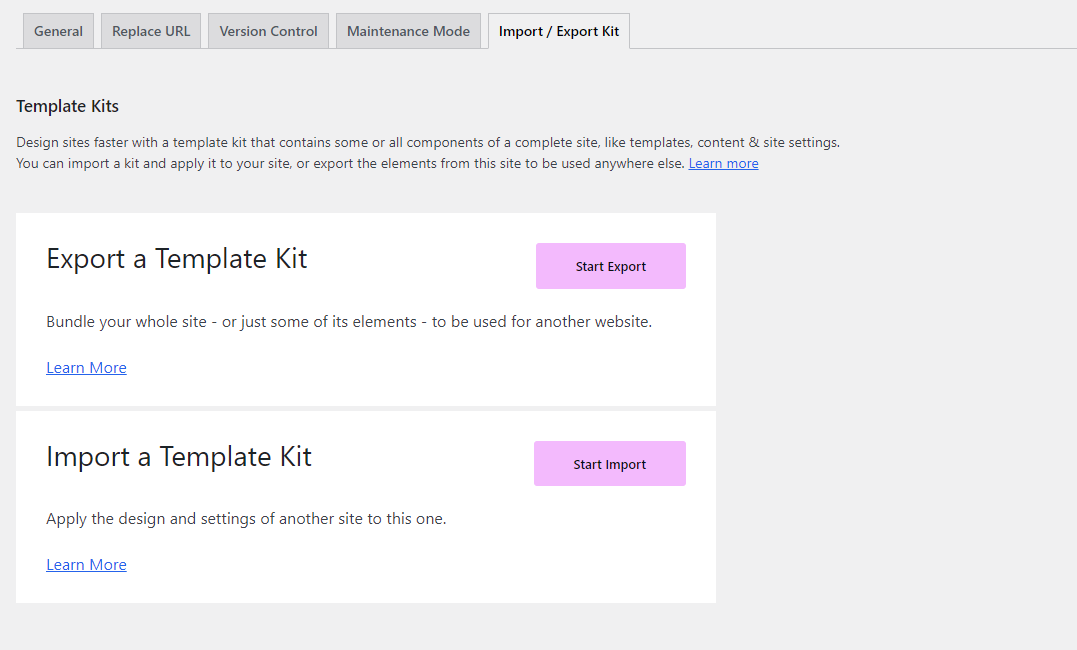
**Step 8** - Add some design templates for faster website design.

<figure><img src="https://content.gitbook.com/content/XBaHzdAltWNLiqWbn5ZX/blobs/kMfRADNnH9xJWNcPR04o/Screenshot_8.png" alt=""><figcaption></figcaption></figure>